
Help Article
Routes
Learn how to browse routes, create a route, and prepare it for navigation.
Routes
Use Routes to plan waypoint-based flights, save routes, import route files, and launch a route into navigation while flying.
You can open Routes from Explore > Routes.
Browse the route list
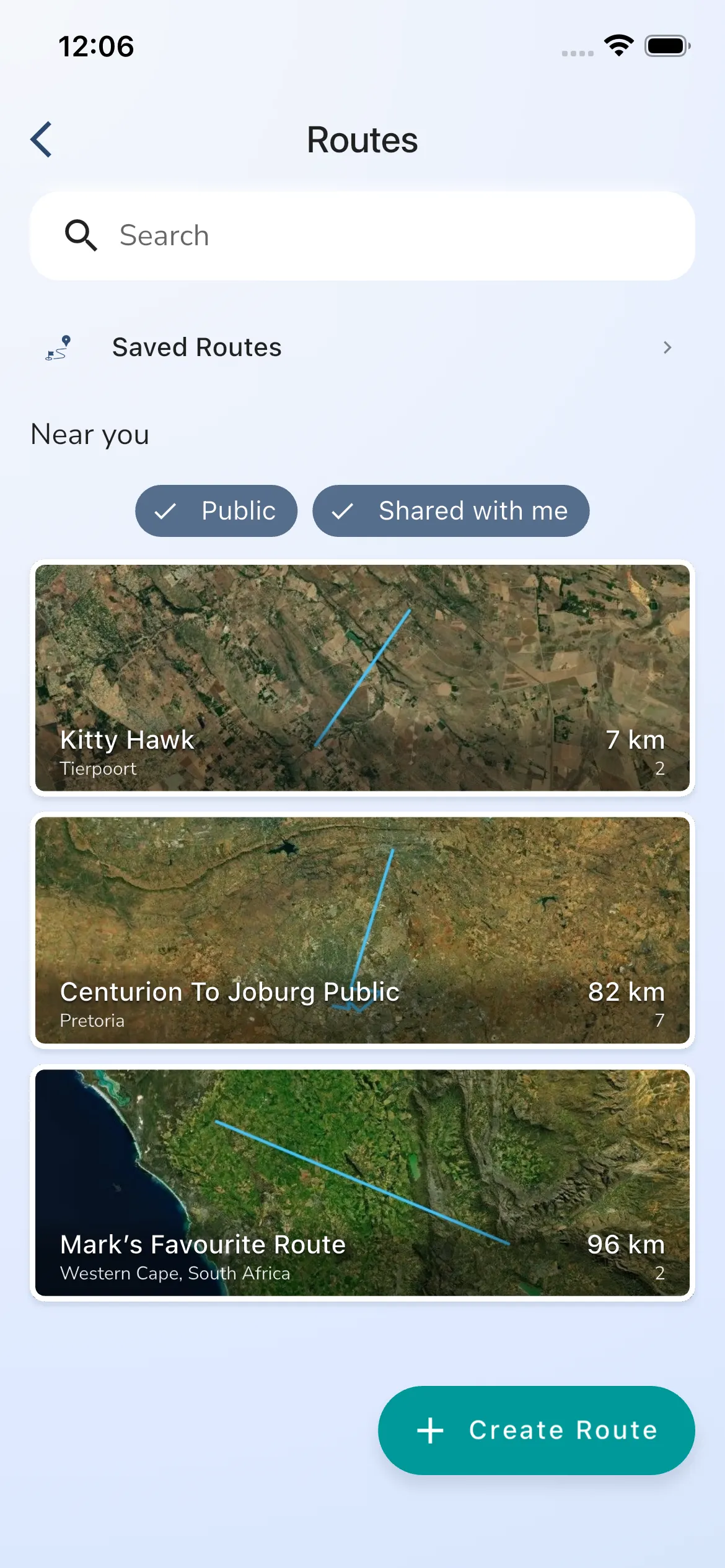
The Routes page is the main place to discover and manage routes.
From here you can:
- search for routes
- open Saved Routes
- browse matching route results
- open an existing route
- start creating a new route
Open Saved Routes
The list includes a Saved Routes shortcut near the top.
Use Saved Routes when you want quick access to routes you have kept for later instead of searching the full list again.
Create a route
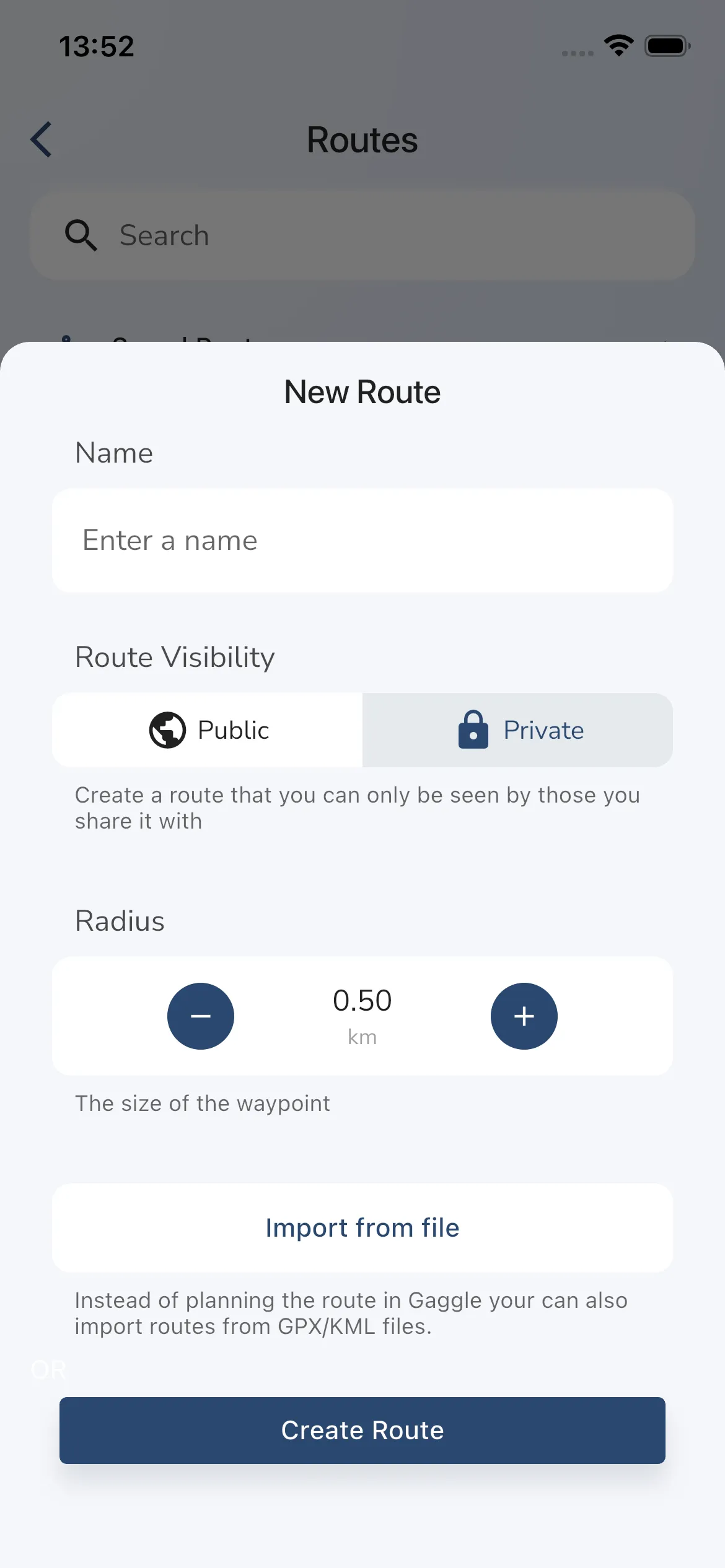
Tap Create Route to open the route creation sheet.
When you create a route, Gaggle lets you set:
- the route name
- whether the route is public or private
- a default waypoint radius
- optional imported waypoints from a supported route file
If you import a route file, Gaggle applies the selected waypoint radius before creating the route.
Open the route overview
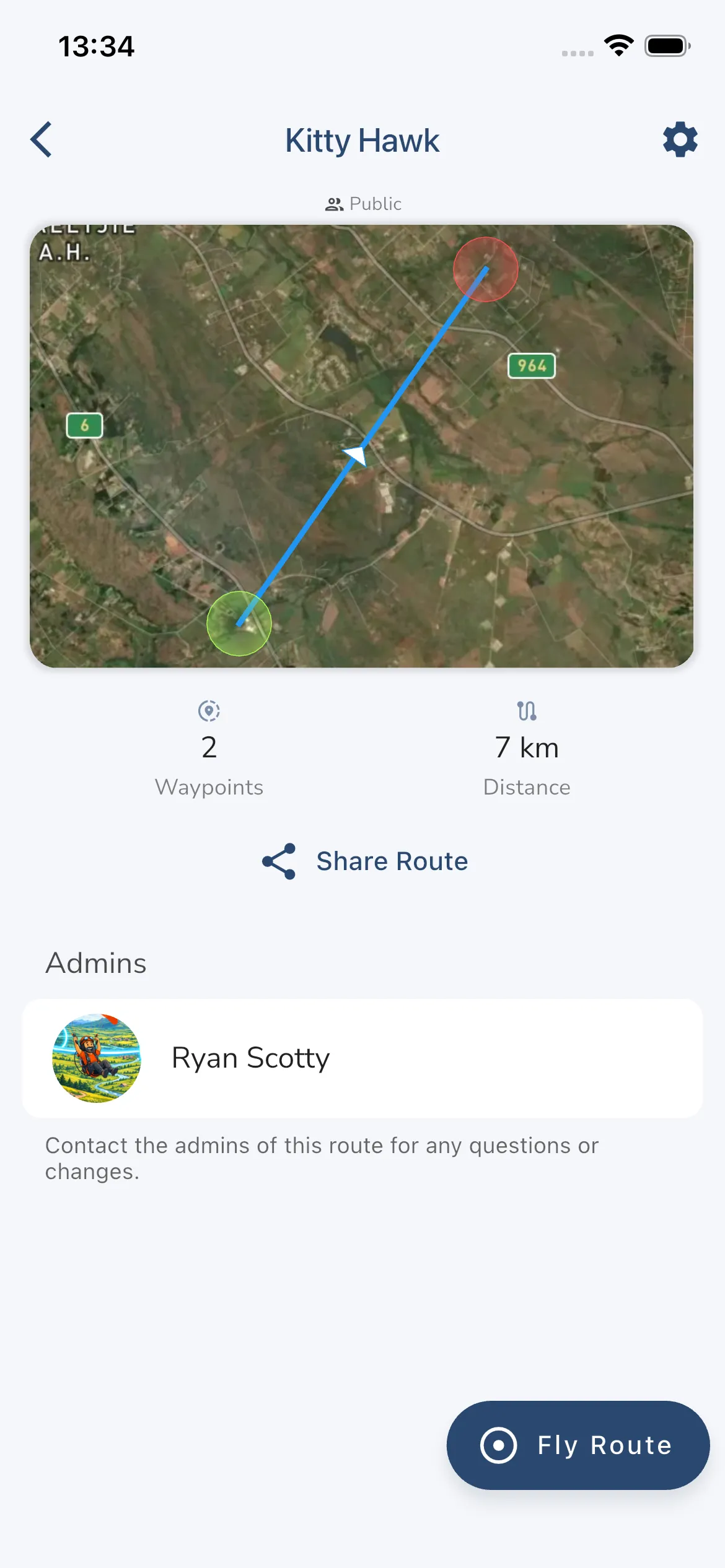
After you create or open a route, Gaggle takes you to the route overview page.
This page is the main summary for the route and includes:
- the route map and header
- route statistics
- route owner information
- Share Route
- save and settings actions in the top-right area
- Fly Route when the route has waypoints
Share a route
Use Share Route from the route overview when you want other pilots to access the route.
Depending on the route, this can be used to send the route to someone directly or manage who the route is shared with.
Save a route
If the route is available to save, Gaggle shows a save action in the top-right corner.
Use this when you want to keep the route in Saved Routes for later planning.
Edit waypoints
Routes are edited in the route overview and waypoint editor flow.
In this flow you can:
- review the route overview
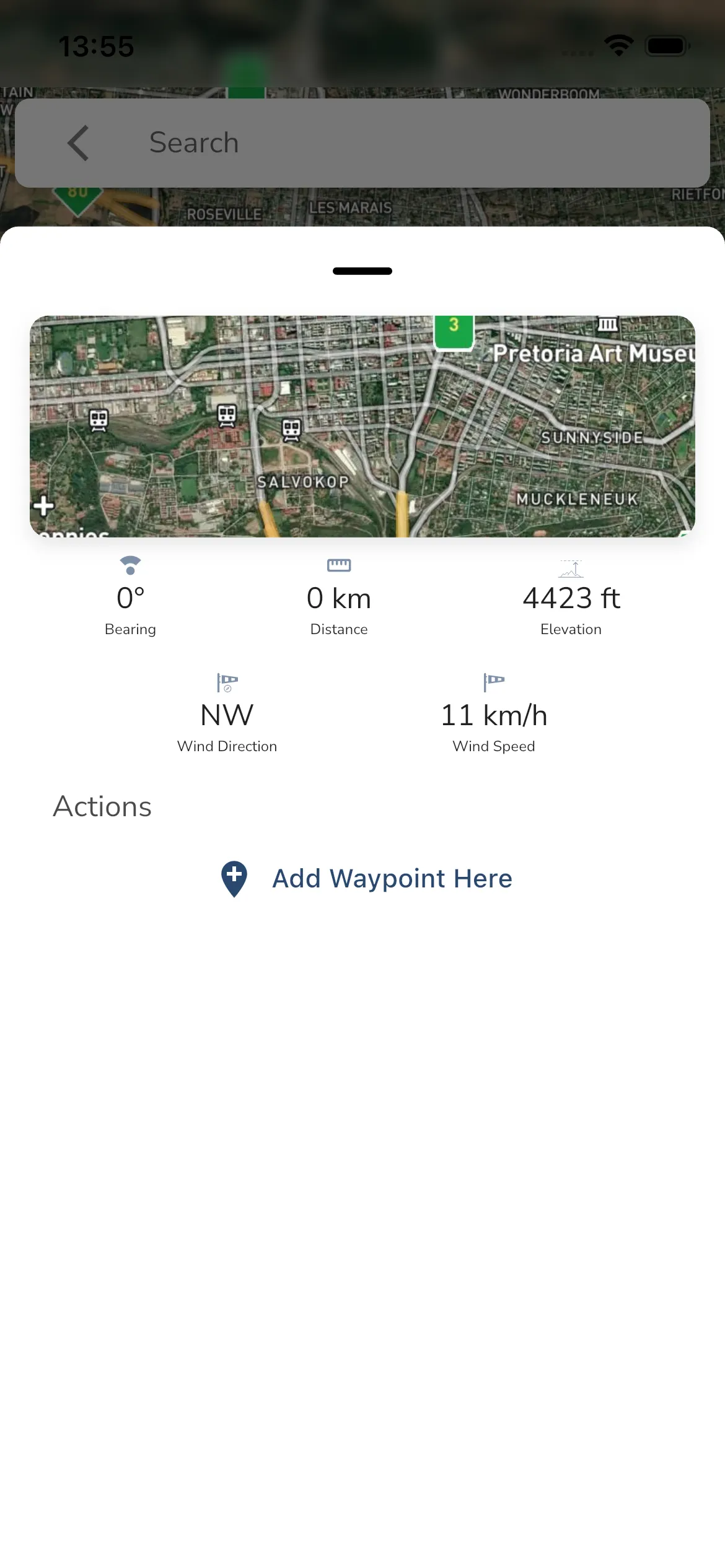
- use the search bar or map sheet to add a waypoint
- select existing waypoints to edit them
- reorder or remove waypoints
- save your changes before leaving
Gaggle prompts you about unsaved changes when you leave an edited route.
Prepare a route for flight
When a route has waypoints, the route overview shows a Fly Route button.
Use this when you want to load the route into active navigation for a recording.
Next steps
If you want to build a route from scratch, start from Explore > Routes and tap Create Route.
If you want to pick places before building a route, return to Explore and start with Flying Sites or the nearby results.