Help Article
Points of Interest
Learn how to browse, create, share, and manage points of interest.
Points of Interest
Use Points of Interest to save useful landmarks, hazards, notices, and landing markers that you can reopen later or fly toward in navigation.
You can open Points of Interest from Explore > Points of Interest.
Browse nearby points of interest
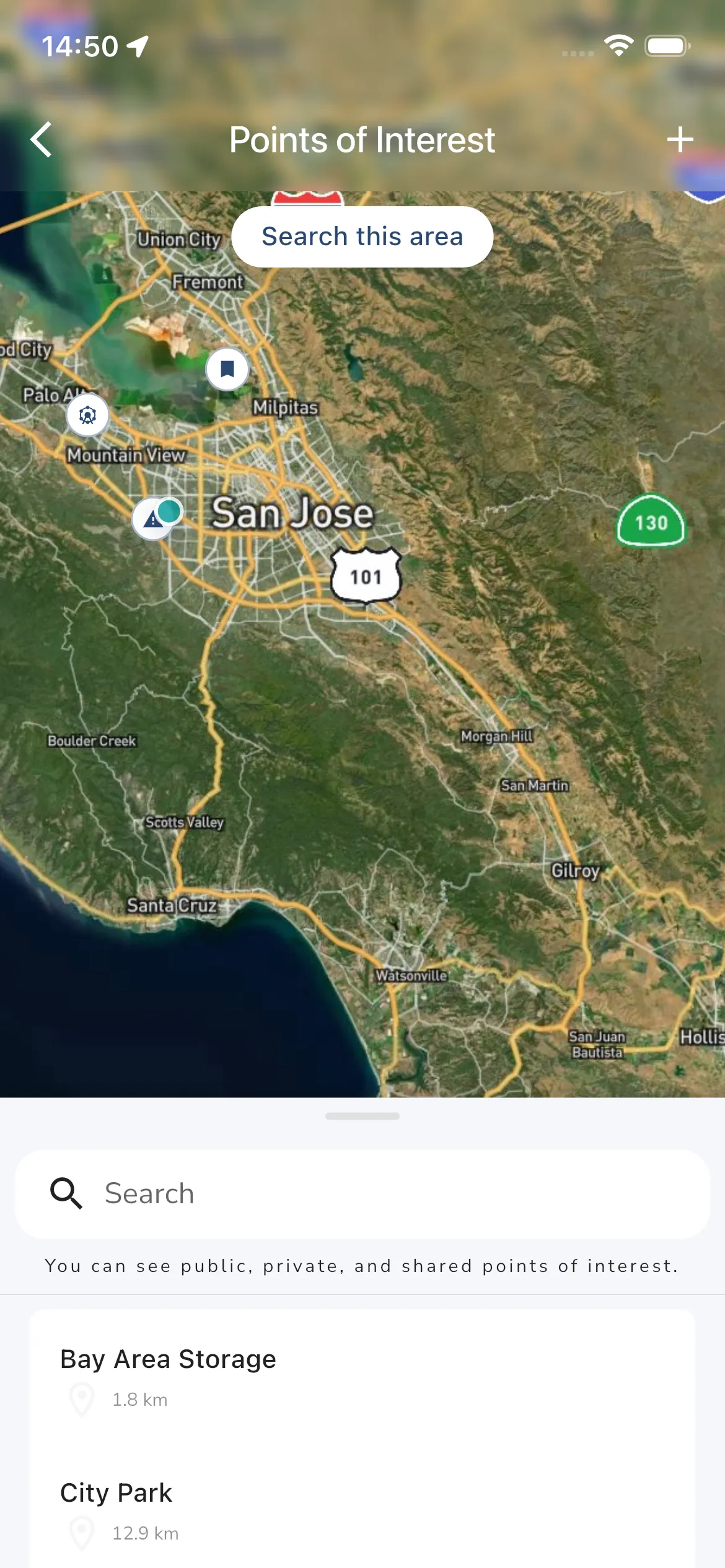
The main Points of Interest page combines a map with a draggable results panel.
From this page you can:
- pan and zoom the map
- tap Search this area after moving the map
- search the current result set from the bottom panel
- open a point of interest from the map or list
- tap + to start creating a new point of interest
The subscription notice under the search bar changes with your plan:
- Adventurer accounts can see public, private, and shared points of interest
- other plans can see private and shared points of interest, but not public ones
Point of interest categories
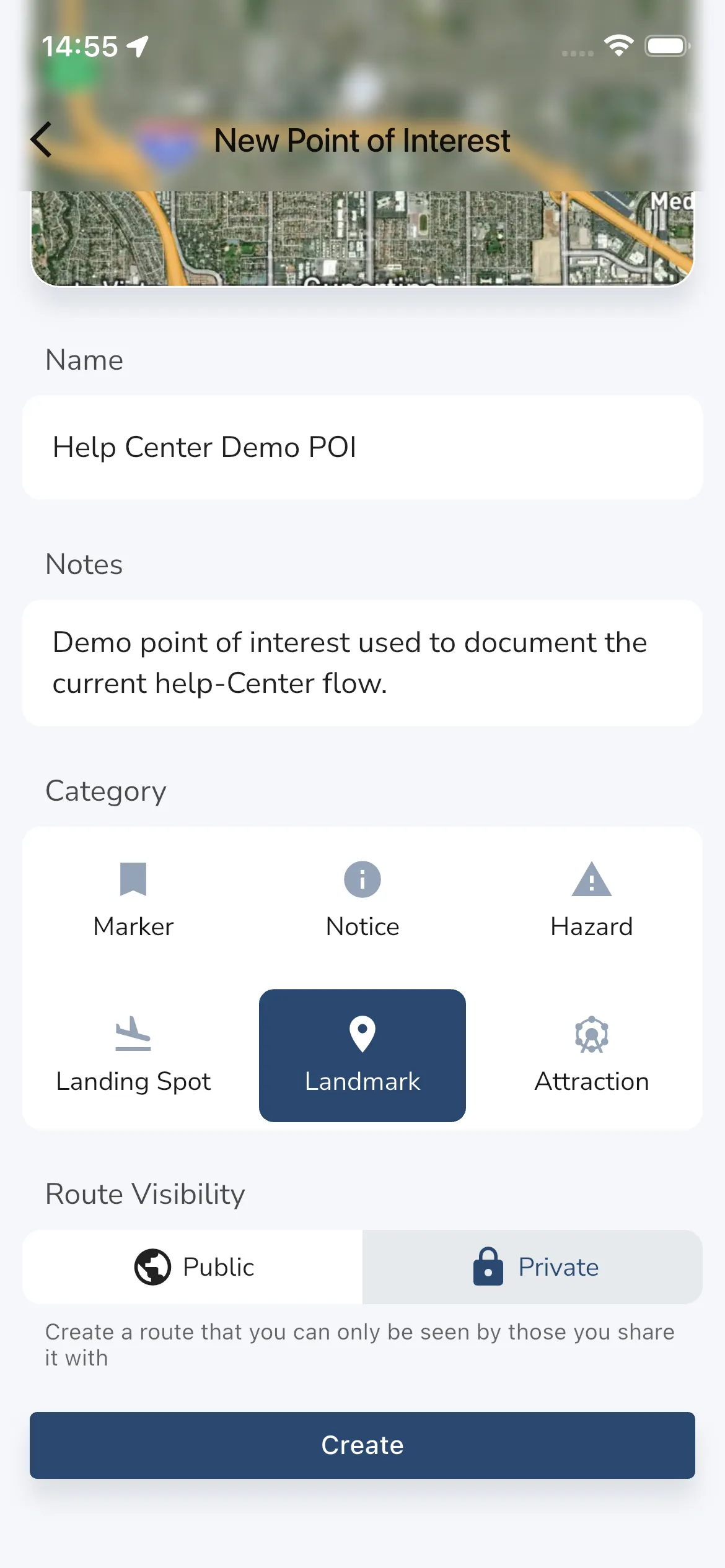
When you create or edit a point of interest, Gaggle lets you choose one of these categories:
- Marker
- Notice
- Hazard
- Landing Spot
- Landmark
- Attraction
These categories control the icon shown on the map and the label shown on the details page.
Create a point of interest
Tap + from the Points of Interest page to start the create flow.
The current flow is:
- pick a location on the map
- tap the checkmark to confirm the coordinates
- fill in the point of interest details
- tap Create
The create form includes:
- a map preview for the selected location
- Name
- optional Notes
- Category
- a visibility toggle
In the current app build, the visibility section is labeled Route Visibility even though this flow creates a point of interest. Use it to choose between:
- Public
- Private
Name is the only field you need to fill in before creating the point of interest.
Open the point of interest details page
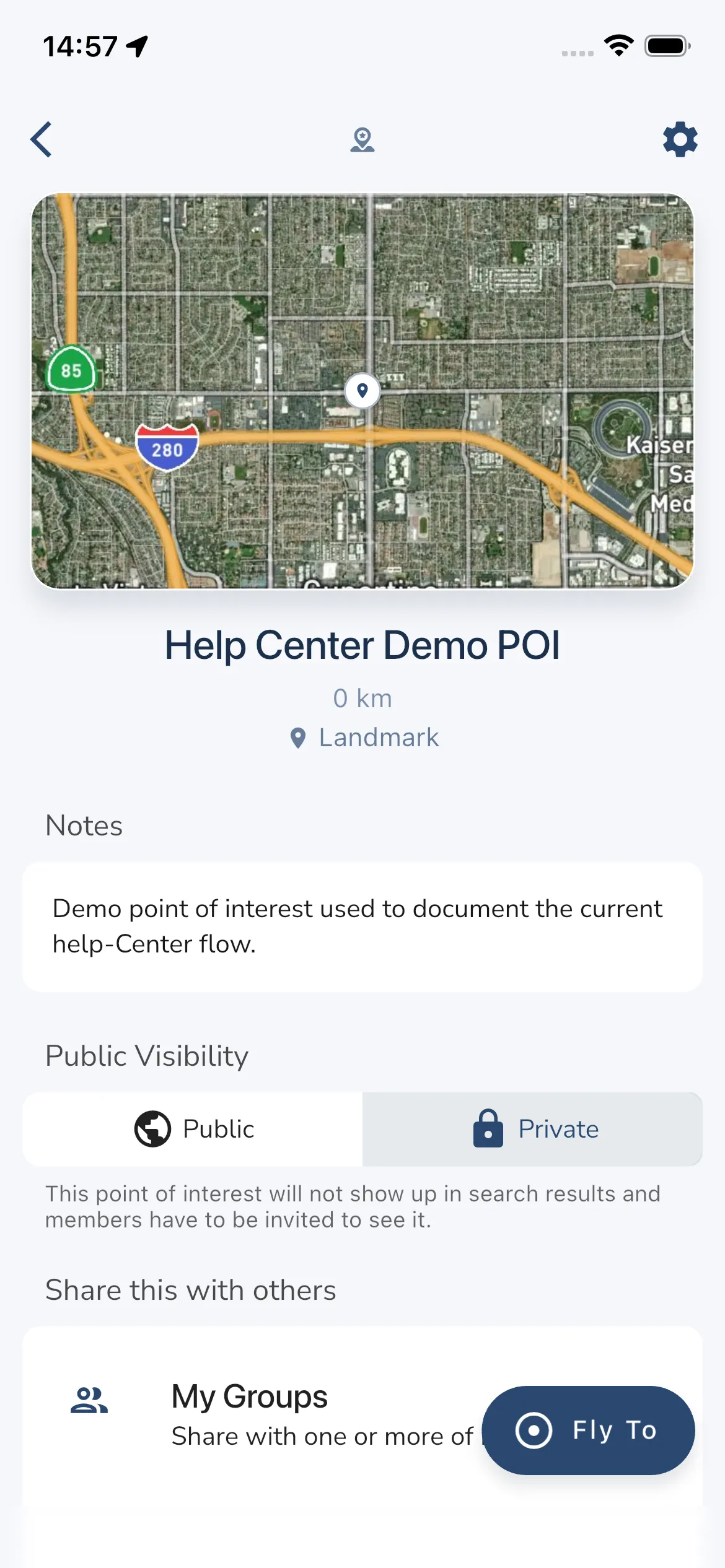
After you create or open a point of interest, Gaggle takes you to its details page.
This page includes:
- the map preview
- the point of interest name
- distance from your current location
- category
- notes
- the Fly To action
Tap Fly To when you want to load the point of interest into navigation as a destination while flying.
If you manage the point of interest, the details page also shows visibility and sharing controls directly on the page, plus a settings button in the top-right corner.
Manage visibility and sharing
Managed points of interest can be switched between Public and Private.
Private points of interest do not appear in public search results. Instead, pilots need access through sharing.
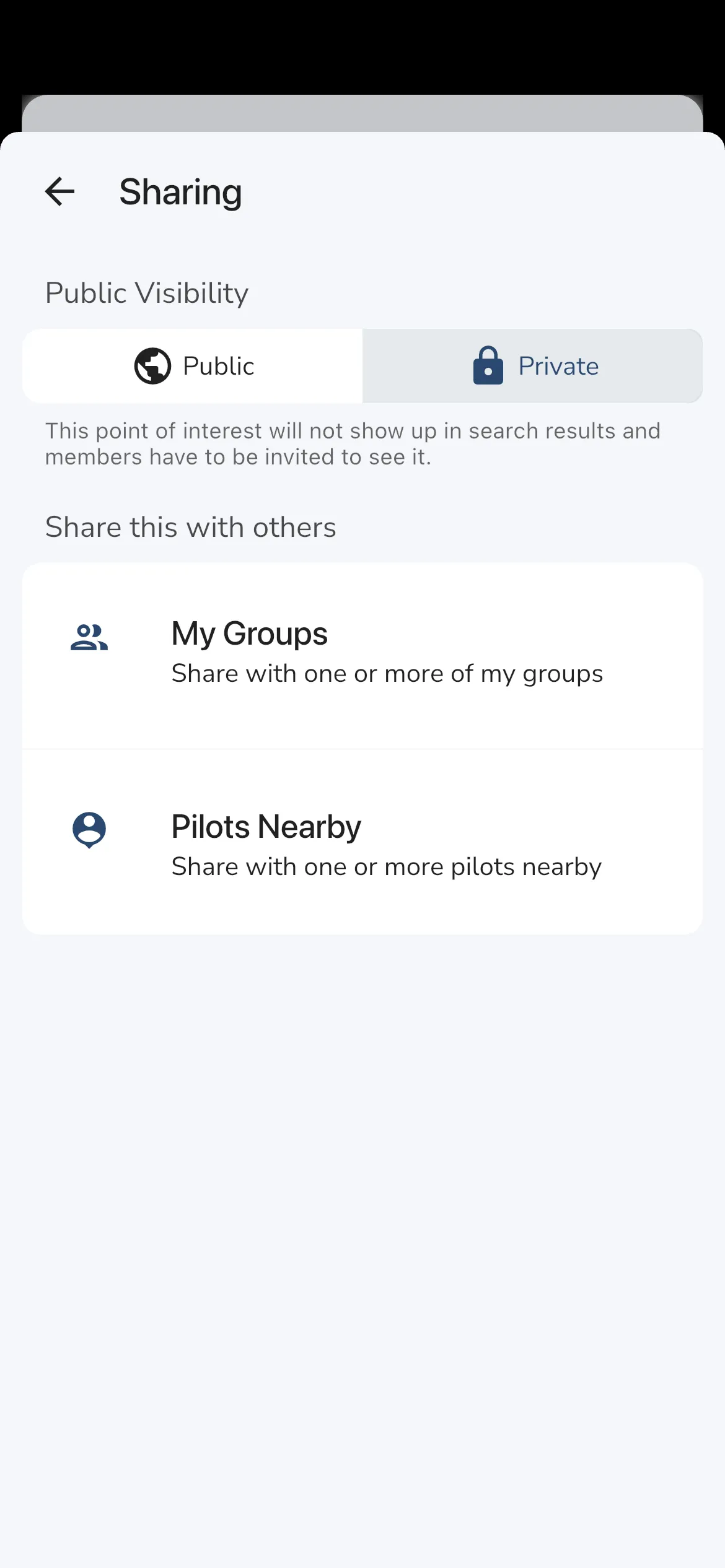
The sharing flow currently supports:
- My Groups
- Pilots Nearby
Open these options when you want to share a private point of interest without making it public to everyone.
Open POI settings
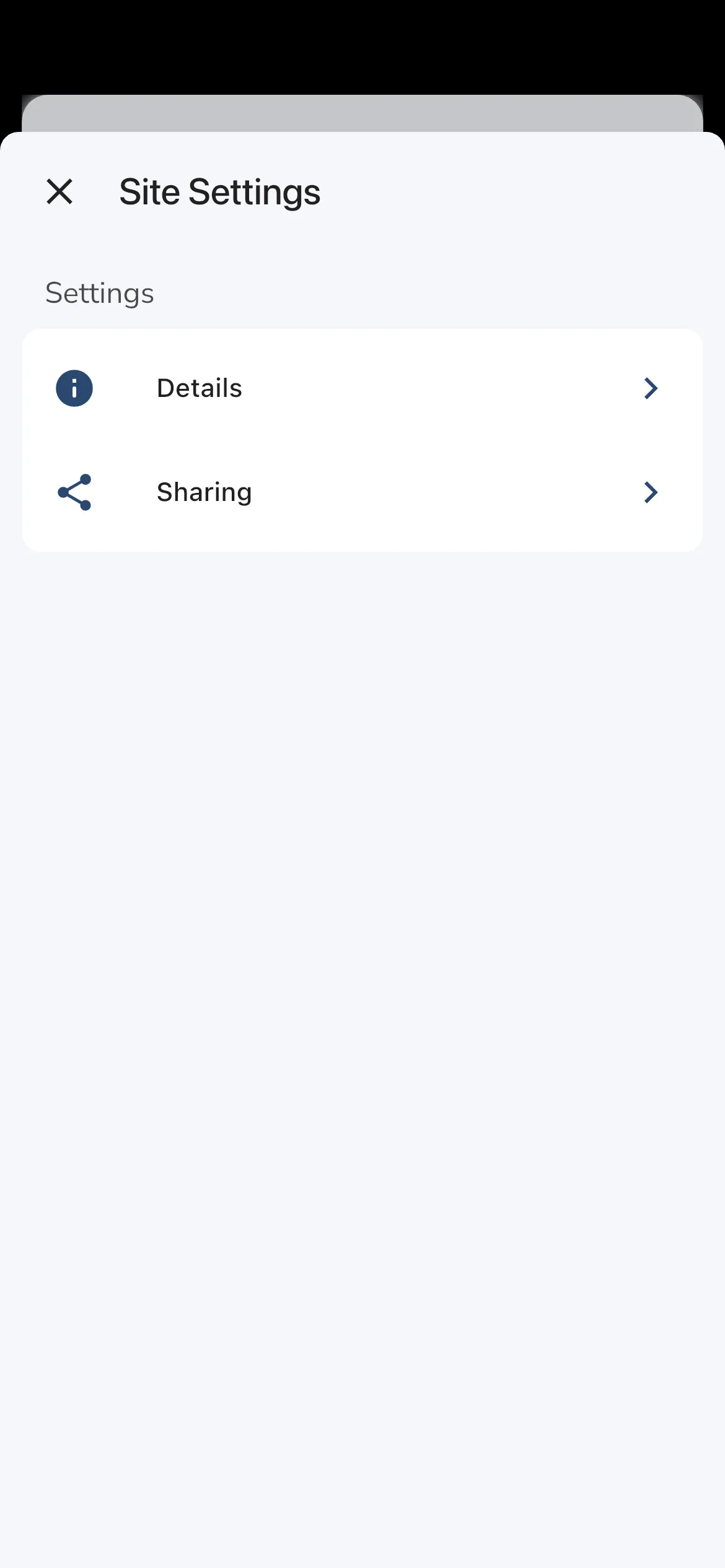
From the point of interest details page, tap the gear icon in the top-right corner.
In the current UI, this panel is titled Site Settings. For points of interest it currently contains:
- Details
- Sharing
Edit point of interest details
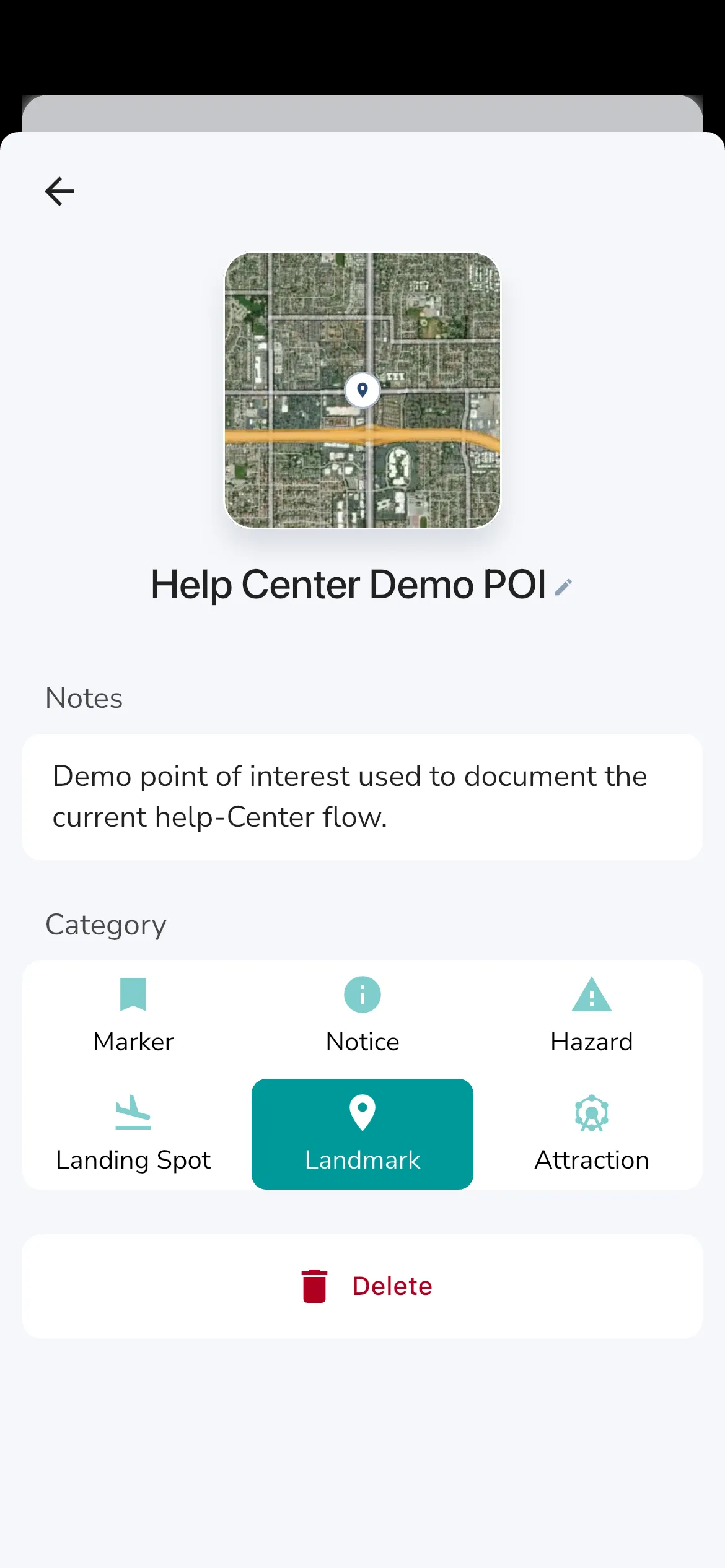
Open Site Settings > Details to update the point of interest itself.
This page lets you:
- rename the point of interest
- update the notes
- change the category
- tap the map preview to pick a new location
- delete the point of interest
Deleting a point of interest archives it and removes it from search results.
Manage sharing from settings
Open Site Settings > Sharing to manage access in one place.
This page repeats the visibility toggle and the share options for:
- My Groups
- Pilots Nearby
Use this page when you want to change who can find or open the point of interest after it has already been created.