
Help Article
Map View
Use the live map, switch terrain styles, and understand the current long-press route and waypoint actions.
Moving Map Instrument
The moving map is your main in-flight view while recording. It shows your position, route guidance, nearby items, and map overlays you can adjust for your flying style.
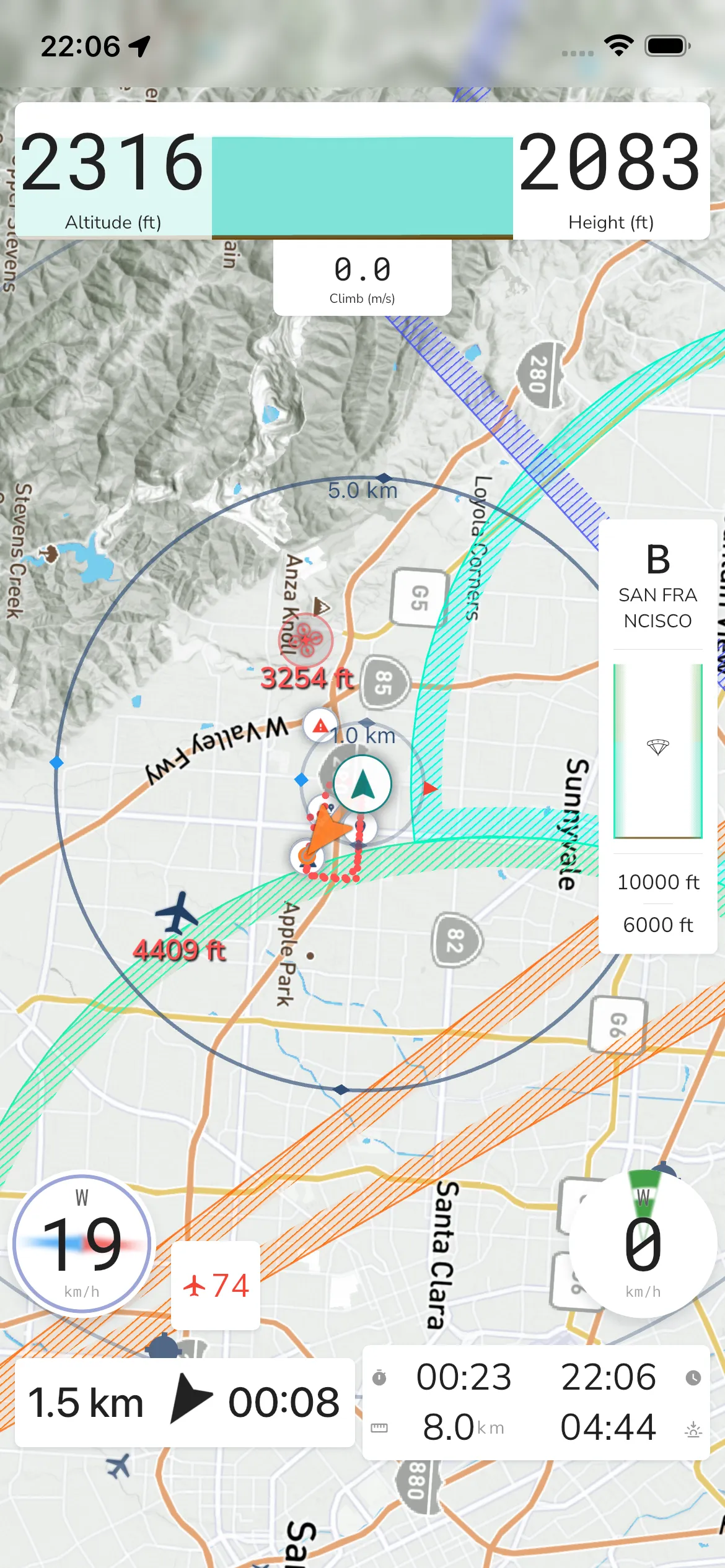
Open map display settings
From the recording screen:
Record -> Recorder Settings -> Configurations -> Display -> Map
In this section you’ll find map controls such as:
Base Map: Choose between Satellite, Terrain, Competition, and Sectional.
Weather Radar: Toggle rain radar on/off on top of the map.
Map Orientation: You can configure the map to follow your general heading as you fly, or you can choose to have a north up view where the map will not move around.
Map Items: Show or hide overlays like Pilots Nearby, Snail Trail, Waypoints, Airspaces, Glide Shadow, and Prediction Vector.
Markers: Configure visible marker types such as points of interest, flying sites, airports, and shared/public markers.
When you tap the map in-flight, quick actions appear for info, zoom, recorder settings, and stopping a recording.
Nearby Pilots: If you have friends flying with you then they will have markers indicating their location and whether they are above or below you. Your friends must also use Gaggle to record their flight for this feature to work.
Flight Path: As you fly, Gaggle can draw your snail trail so you can see where you’ve been.
Take-off Indicators: The map can show your takeoff location to help you orient and navigate back when needed.
Airspaces: If you have airspaces installed for your region, they can be shown on the map.
Waypoints: When flying a route, the waypoints will show on the map indicating your route and where you need to fly to next.
Points of Interest: Public and private points of interest will show on the map. You can tap on any of the points of interest to see more details about them.
Flying sites: Public and private flying sites will show on the map. You can tap on any of the flying sites to see more details about them.
You can tap anywhere on the map to reveal additional controls like map zoom in/out.
Long press
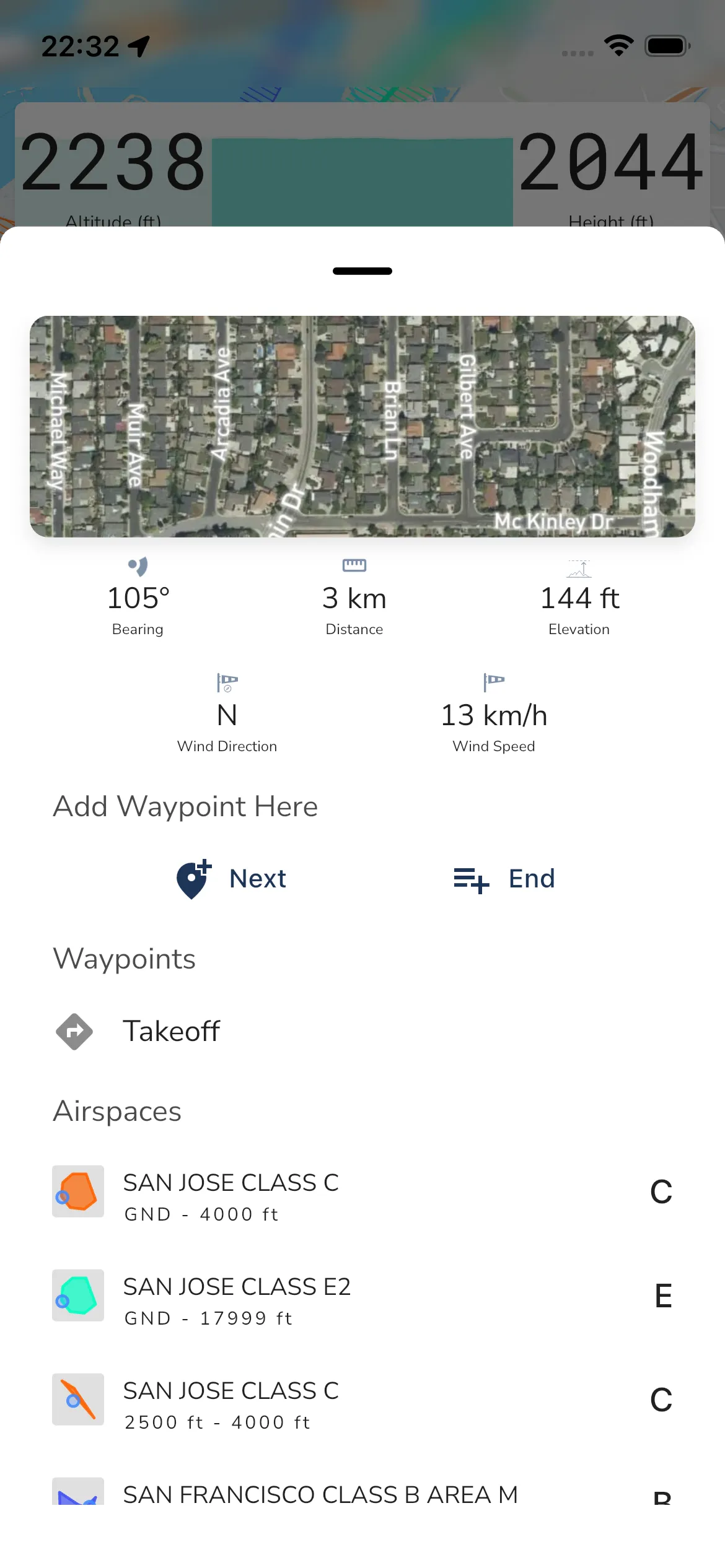
Long press anywhere on the in-flight map to open the location sheet. The current sheet shows location details first, then waypoint and nearby-airspace sections underneath.
Bearing: The bearing from your current location to the location you long pressed on.
Distance: The distance from your current location to the location you long pressed on.
Elevation: The elevation of the location you long pressed on.
Wind Direction: The wind direction for the selected location.
Wind Speed: The wind speed for the selected location.
Add Waypoint Here: Add a waypoint using Next (insert next) or End (append to route end).
Waypoints: Existing nearby route waypoints are listed here when present. In the current demo state this section includes Takeoff.
Airspaces: Nearby airspaces are listed underneath the waypoint section.
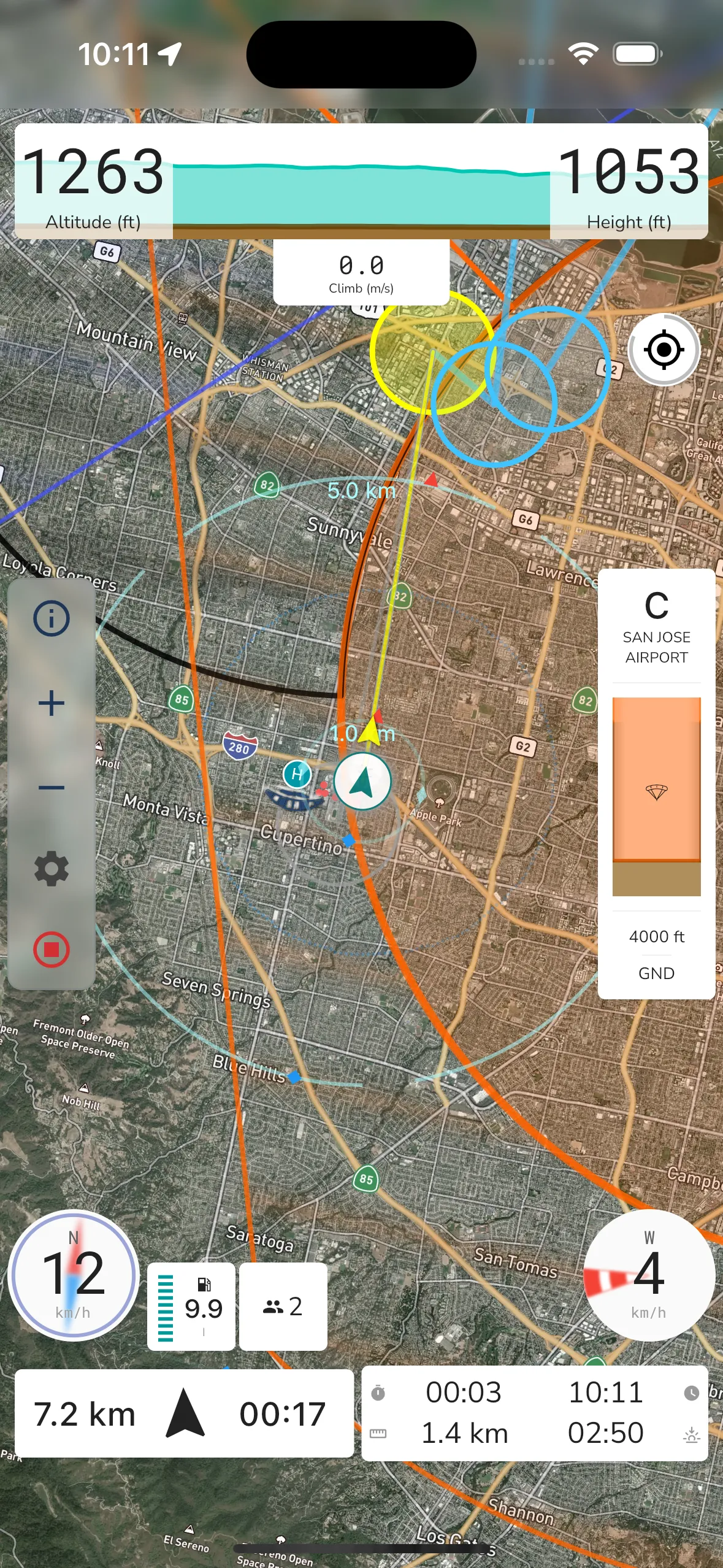
Satellite Map View
Switching to Satellite changes the background imagery while keeping the same in-flight controls and overlays.
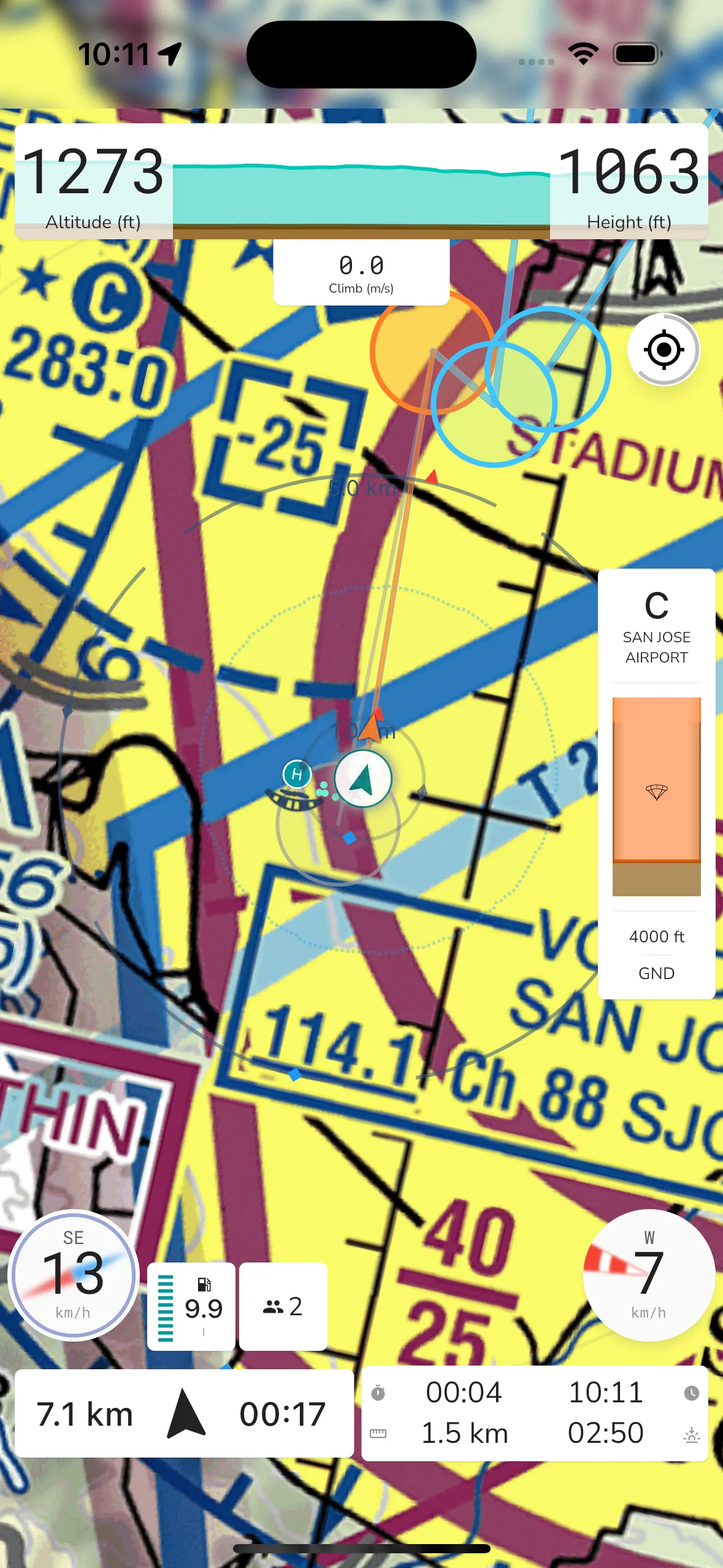
Sectional Map View
If available in your region, you can switch to Sectional in Base Map. This keeps the same controls while using sectional chart tiles.