
Help Article
Flight Recorder Controls
Learn the current in-flight control tray, stop flow, and route/time widgets.
Flight Recorder Controls
In the current iOS recorder, controls are icon-led.
When entering active recording, the full left action tray can appear briefly before collapsing back to the normal map view. You can also reveal it by interacting with the map.

Info icon: Opens location details for the current map area.
Zoom in icon: Increases map zoom.
Zoom out icon: Decreases map zoom.
Settings gear: Opens Recorder Settings.
Red stop control: Opens the stop confirmation dialog:
Recording flightDo you want to stop the recording of your flight?CONTINUE RECORDINGSTOP
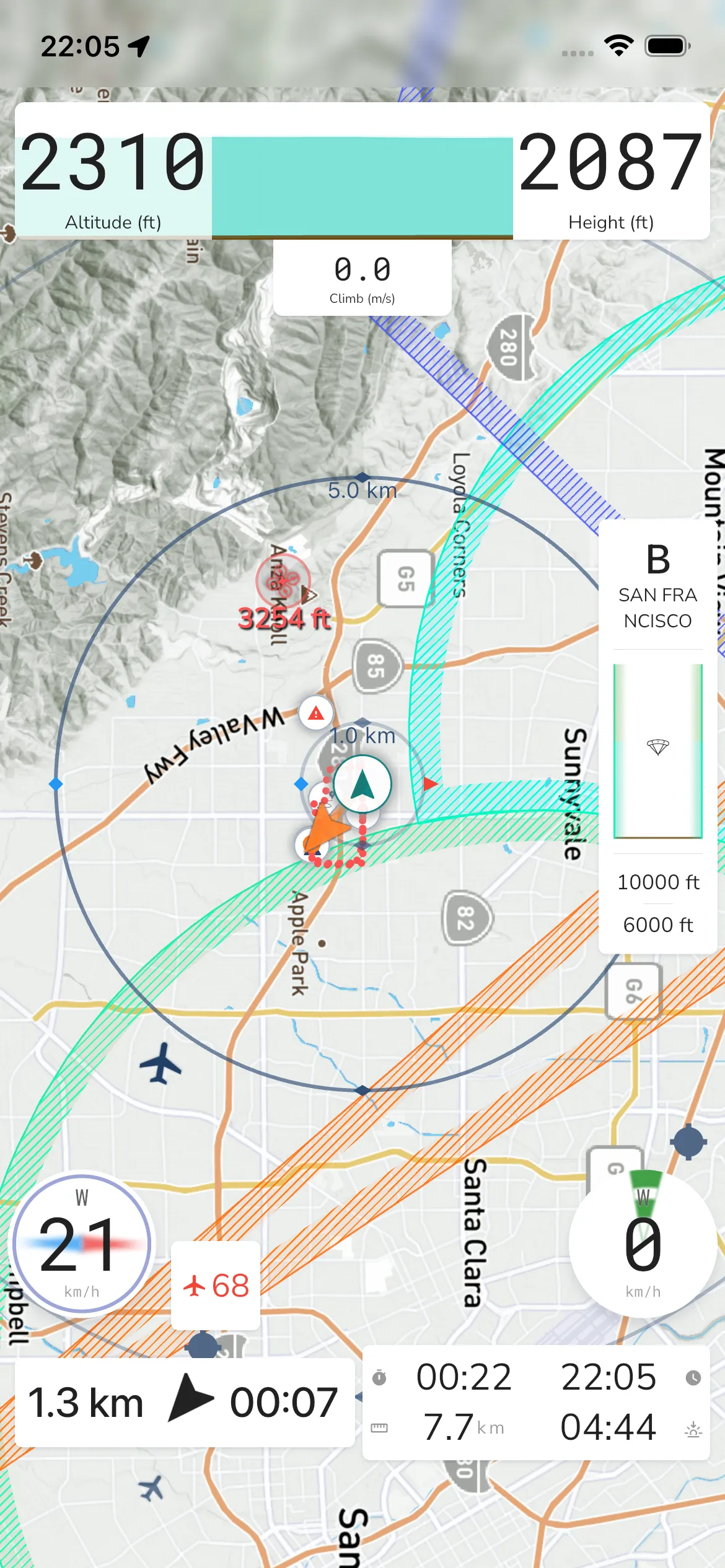
The lower widgets show live flight information while recording.
In the current layout, this area includes waypoint/route guidance plus the route/time panel.
The route/time panel can include:
- Flight Duration
- Distance Flown
- Current Time
- Sunset Time
Recorder settings from in-flight controls
From the gear icon, the current Recorder Settings root sections are:
- Privacy & Security
- Configurations
- Audio
- Gestures
- Integrations
- Equipment