
Help Article
Airspace Widget
Viewing airspaces in flight with the airspace widget.
Airspace Instrument
Recorder > In flight > Airspace side panel
When airspaces are available for your region and relevant to your current position, Gaggle shows a compact airspace side panel in the in-flight recorder shell. The compact panel shows the current airspace class and its altitude limits. Tap this panel to open the full airspace detail and list view.
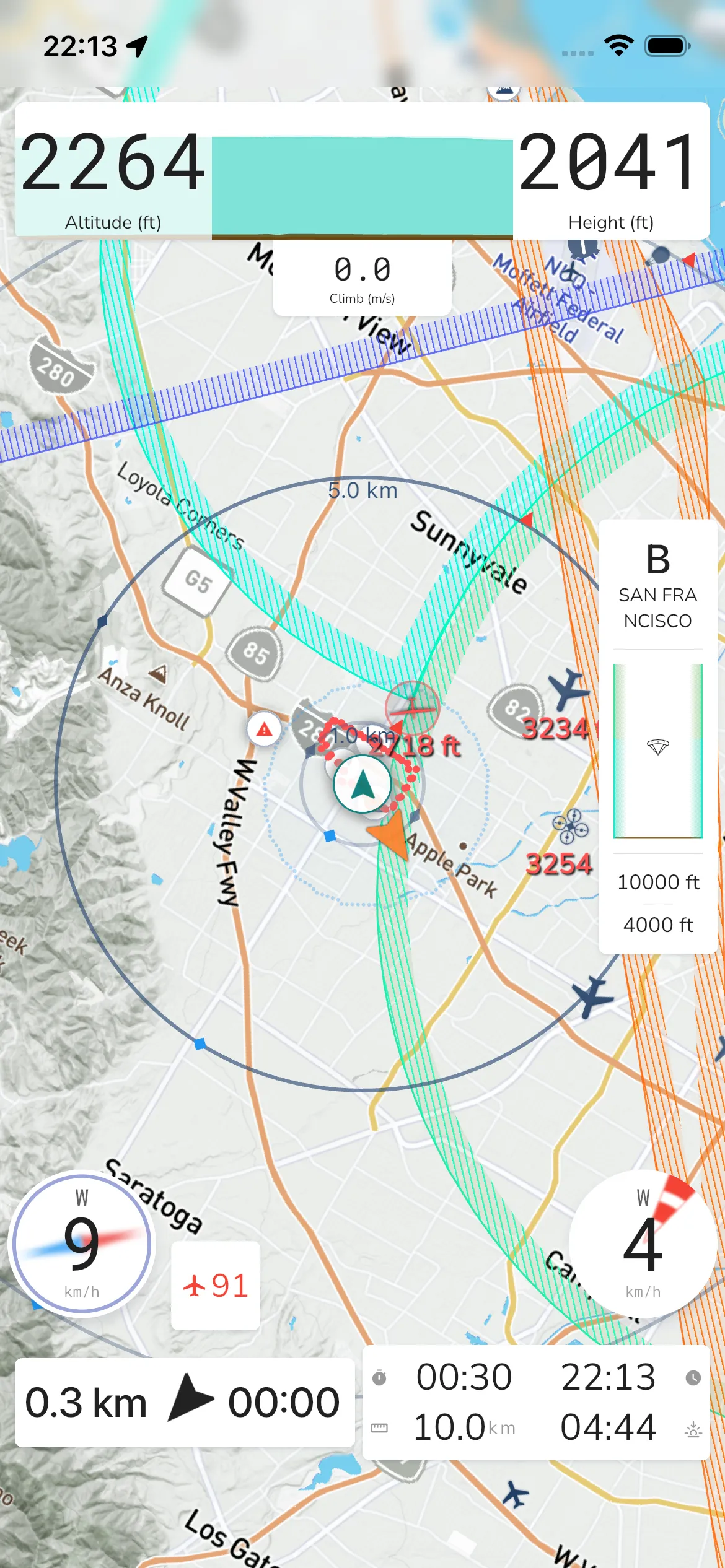
The compact panel is focused on one currently selected airspace:
- class indicator (for example class
B) - the selected airspace name
- visible altitude limits for that selected airspace
Use this as a quick in-flight reference, then tap through when you need the full nearby list.
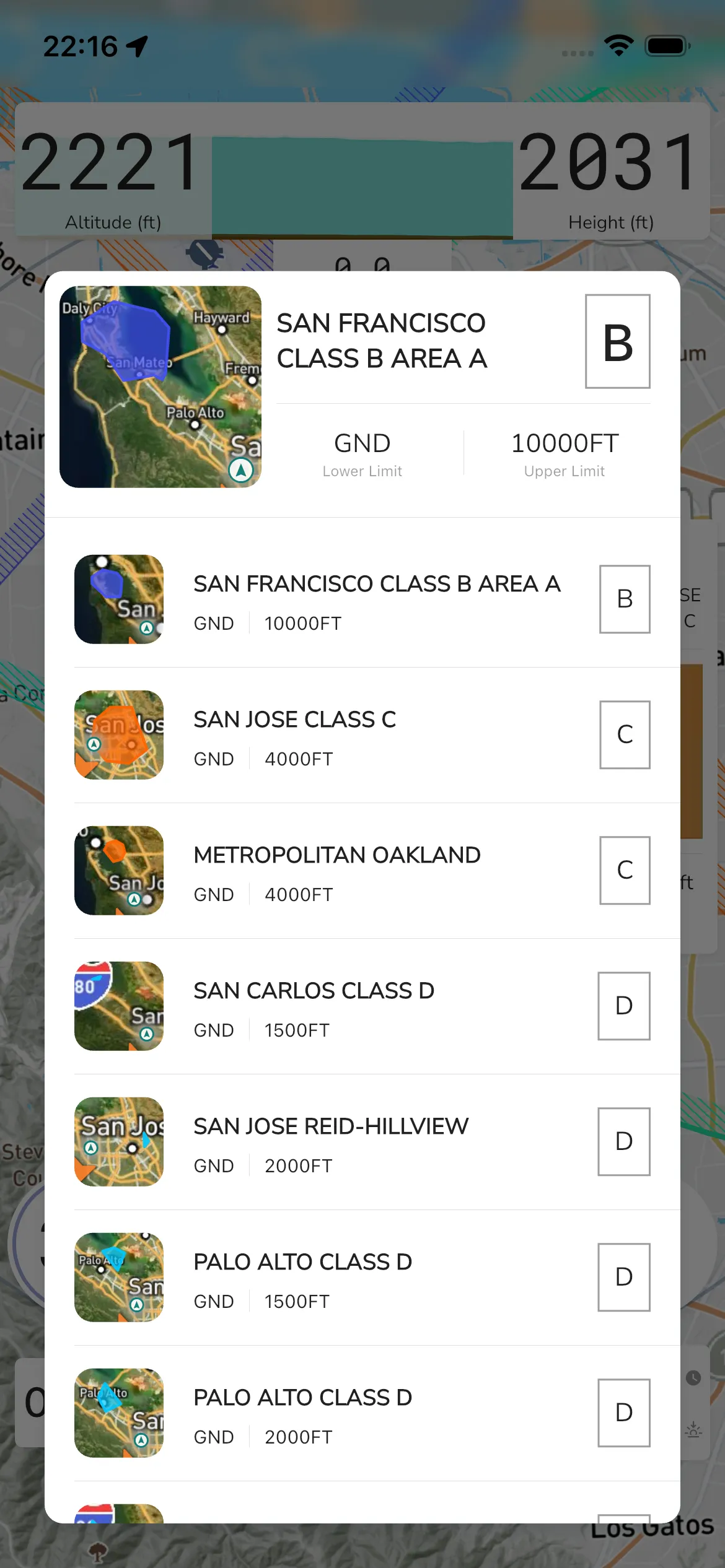
Airspace detail and list view
Tap the compact side panel to open the detail/list modal. The selected airspace appears at the top (example: SAN FRANCISCO CLASS B AREA A) with:
Lower LimitandUpper Limit- values such as
GNDand10000FT - a class badge such as
B,C, orD
Below the selected details is a scrollable list of nearby airspaces with map thumbnails.
The exact names in this list depend on the downloaded airspace data for the region you are flying in. Tap any list item to change the selected airspace shown in the header.