
Help Article
Group Leaderboards
Create, configure, and follow group leaderboards from the current Community flow.
Group Leaderboards
Community > My Groups > Joined Groups > Select a group > Leaderboards
Leaderboards help your group compare flights, tasks, and scoring in one place.
Open your group leaderboards
- Open Community.
- Tap My Groups.
- Open Joined Groups.
- Select your group.
- Tap the Leaderboards tab.
On the group page, the current tabs are:
- Leaderboards
- Activity
- Hall of Fame
- Participants (Event groups also include Details.)
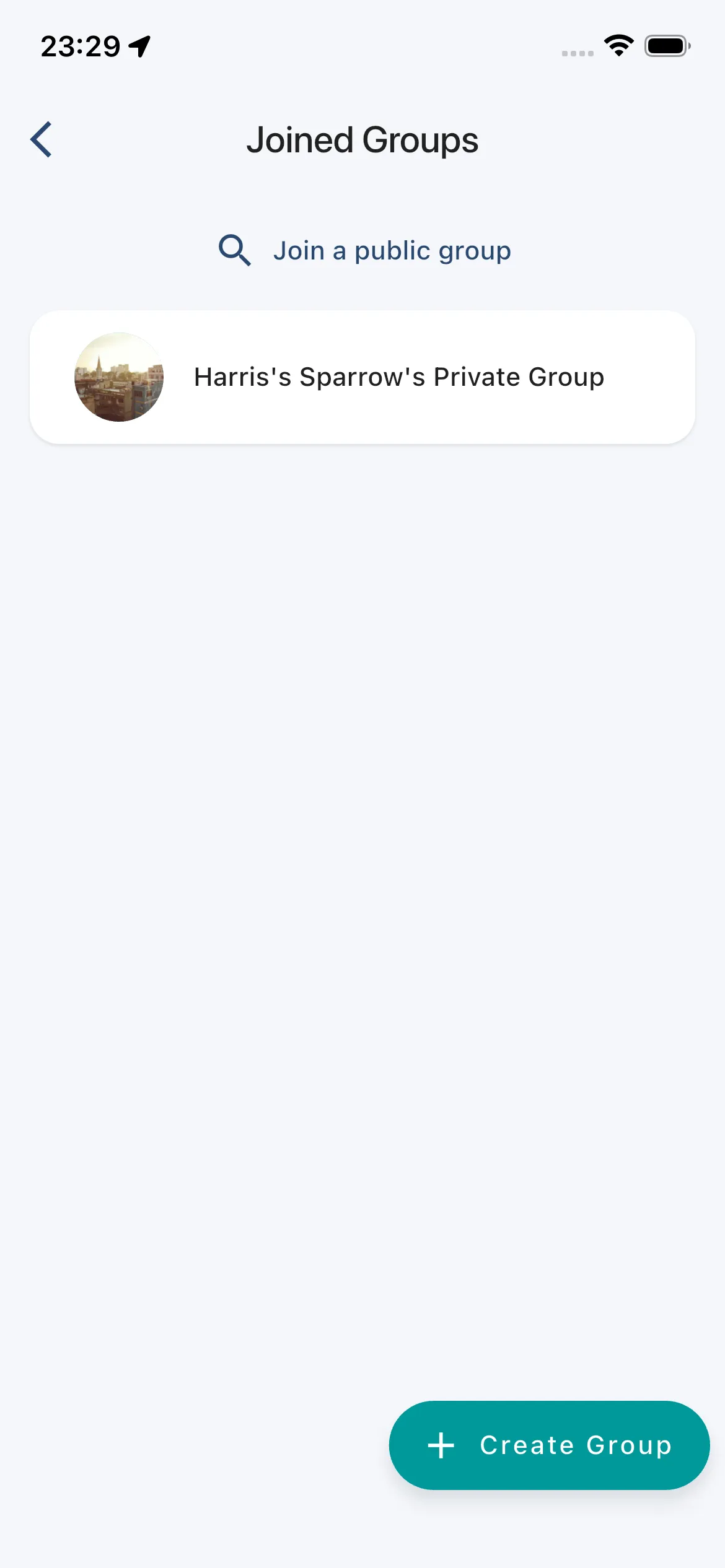
Use My Groups to open Joined Groups, then select the group you want. On this screen you can also use Join a public group and Create Group.
Create a leaderboard (current 3-step flow)
In the Leaderboards tab, group admins/owners can tap Create Leaderboard.
The current create flow is a 3-step modal:
- Create Leaderboard: choose a task type.
- Configuration: set task/scoring configuration.
- Create Leaderboard: set Name, optional Date Range, then tap Save.
Current task types include:
- FAI Triangle
- Free Triangle
- Out and Return
- Turn Point
- Flight Time
- Total Distance
- Waypoint Hunt
- Obstacle Course
- Speed Section
- Altitude
- Paragliding Task
- Paragliding Competition
After saving, some task types open a follow-up editor or manager flow (for example Obstacle Course or Paragliding Competition).
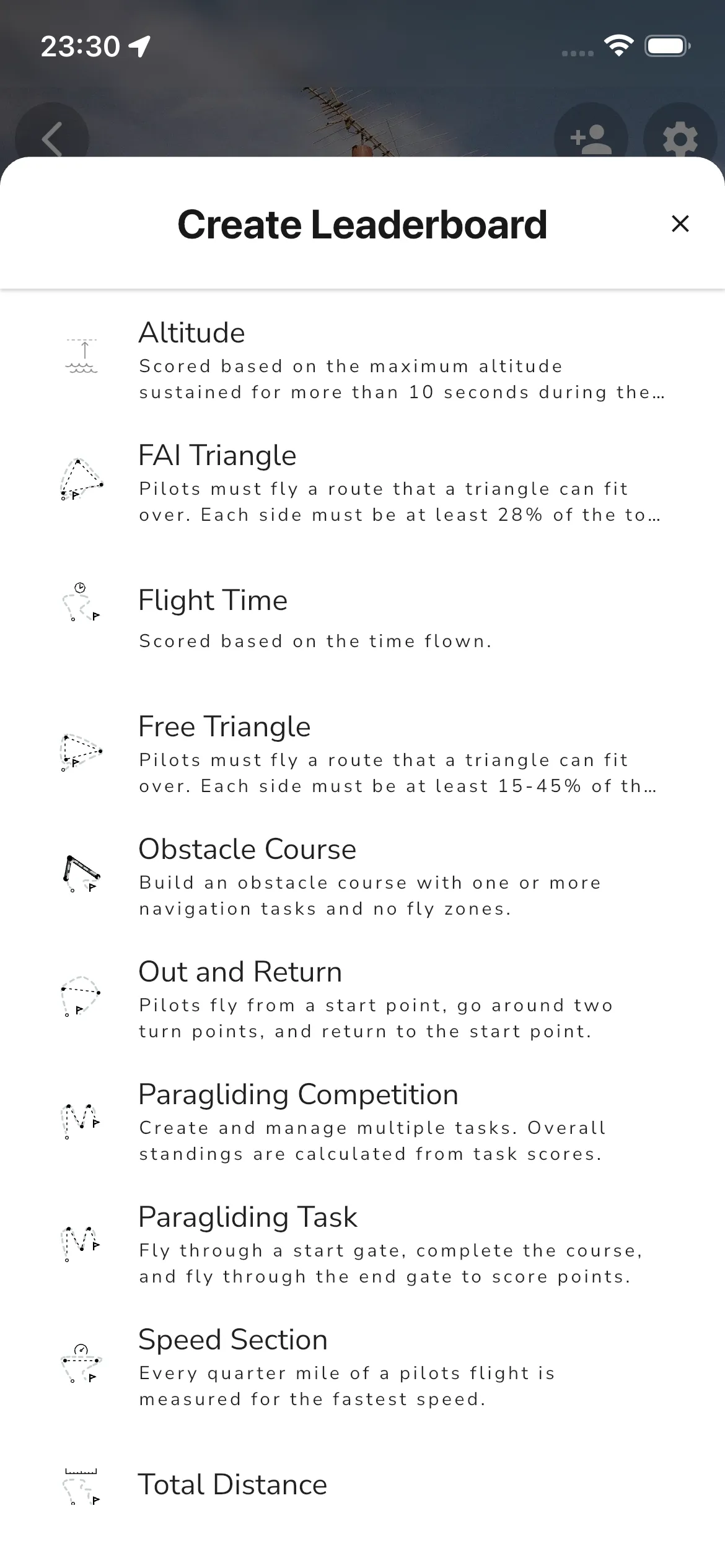
The create flow uses Create Leaderboard -> Configuration -> Create Leaderboard (Name, optional Date Range, Save).
View and use a leaderboard
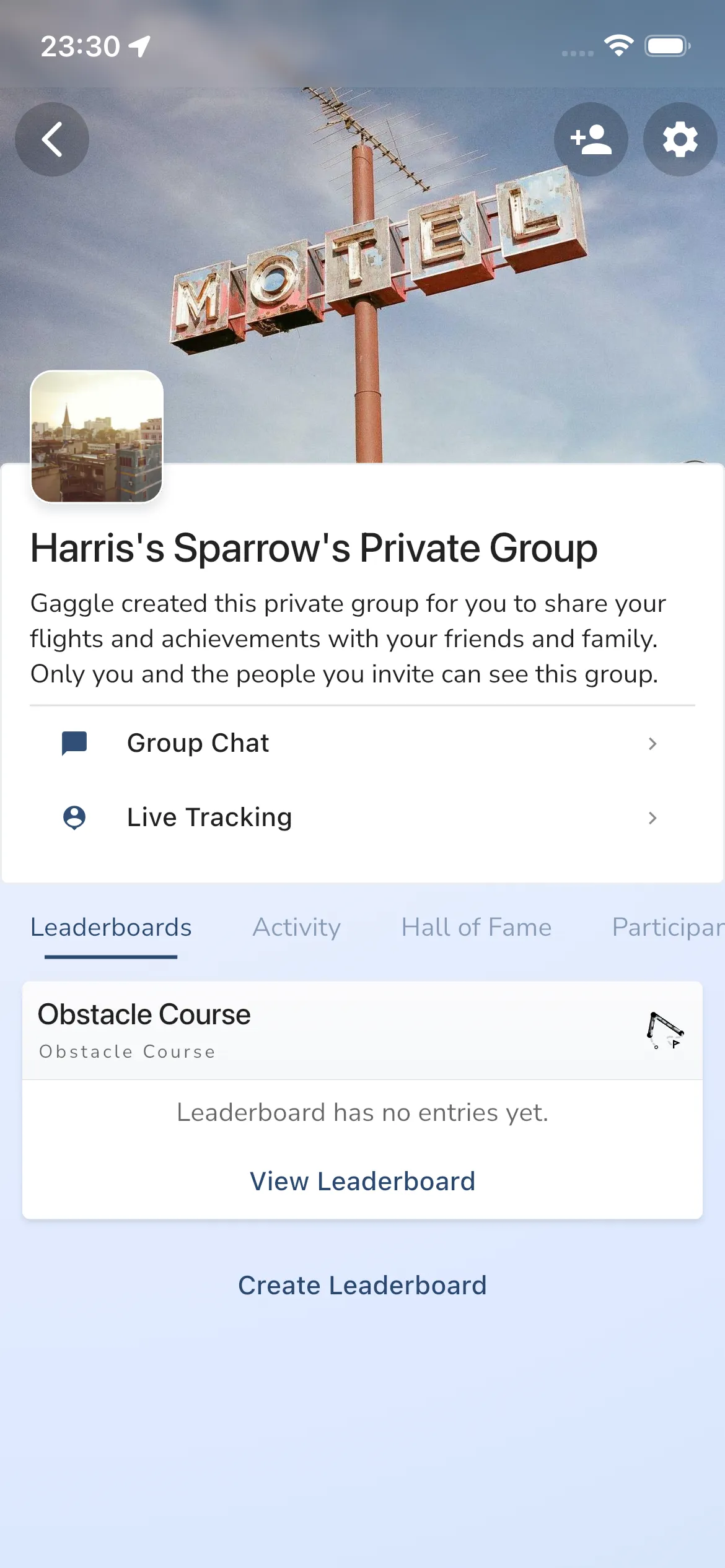
From the group leaderboards list, tap View Leaderboard on the one you want. Rows can show task names such as Obstacle Course and a status like Leaderboard has no entries yet.
Inside a leaderboard:
- Use the top tabs: Leaderboard and Task Details.
- Tap a pilot entry once to select it and show more context.
- Tap the same selected entry again to open that flight’s recording details.
- Use Replay Flight to jump to replay for the selected entry.
Group admins can delete the leaderboard from Task Details.
FAQ
Can I edit a leaderboard after it’s created?
It depends on the task type. Some leaderboards are mostly configuration-driven after creation, while others (for example Obstacle Course) include ongoing editing tools from Task Details.
When are flights added to the leaderboard?
Flights are scored when they match the leaderboard task/scoring criteria and are available to the group.
Can imported flights be added to the leaderboard?
Yes, if they meet leaderboard criteria and are shared with the group.
The leaderboard contains bad data from a flight that was not valid?
Open the group Activity tab and unlink the flight from the group. It will also be removed from related leaderboards.