
Help Article
Flying Sites
Learn how to browse sites, create a site, and use site details in Gaggle.
Flying Sites
Use Flying Sites to discover launches, open site forecasts, save favourite sites, and jump into each site’s guide and chat.
You can open Flying Sites from:
- Explore > Flying Sites
- the Flying Sites card on Home
- Explore search results or nearby results
Browse the site list
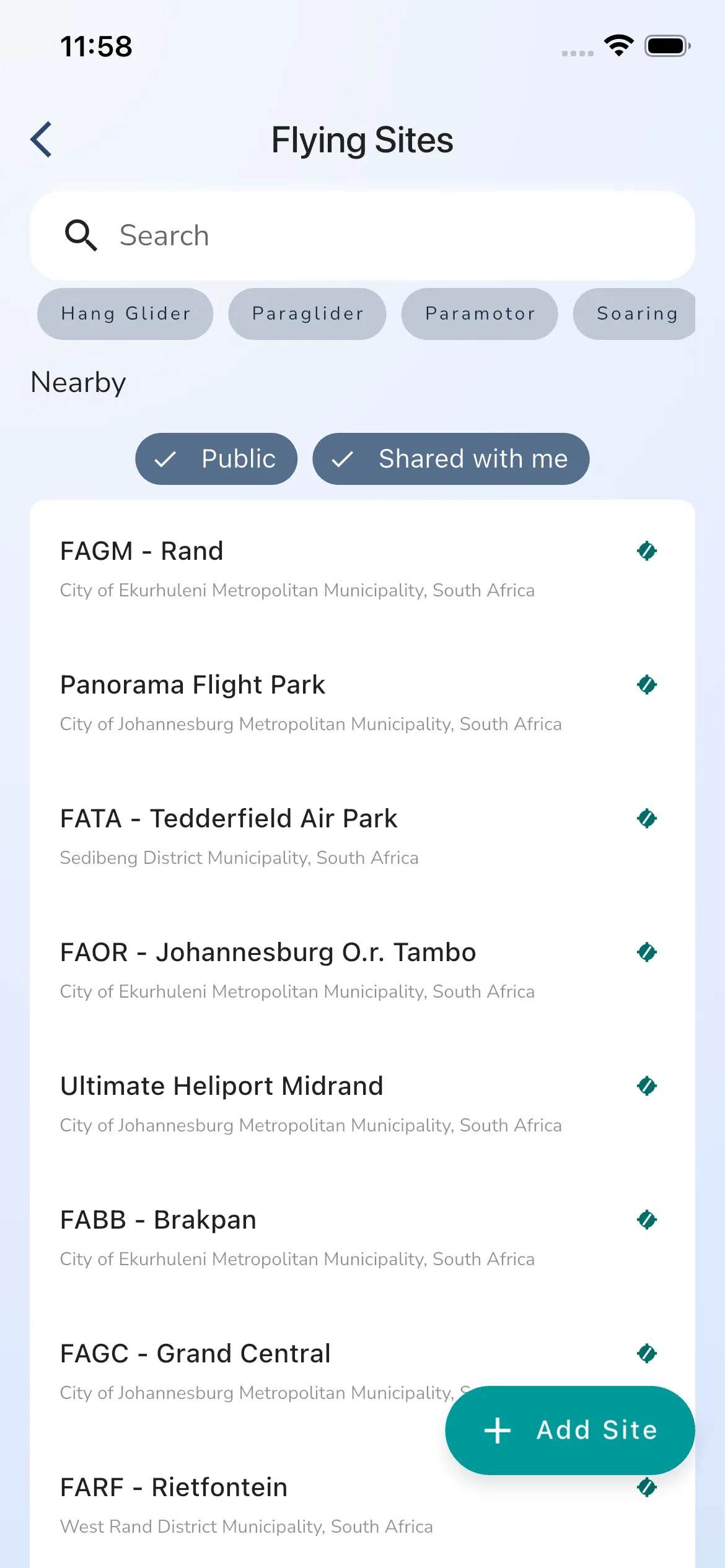
The Flying Sites page is built for quick discovery.
From this page you can:
- search for sites
- filter by site tags such as aircraft type
- review your
Favouritesites near the top when available - scroll the full site list
- open any site to view its forecast and details
If you came from Explore, the nearby map and nearby list are often the fastest way to jump into a site directly.
Save a site as a favourite
Open a site and tap the heart icon in the top-right corner to mark it as a favourite.
Favourite sites are used across Gaggle for:
- faster access from the Flying Sites card on Home
- quicker access from search and nearby flows
- site-level alerts where supported
Create a new site
If your account has site-management access, tap Add Site from the Flying Sites page.
Creating a site is a guided multi-step flow:
- choose the site location
- review a nearby-site warning if Gaggle finds an existing site in that area
- add the site details
- choose visibility and site protection settings
- configure the wind guide
- finish on the new site page
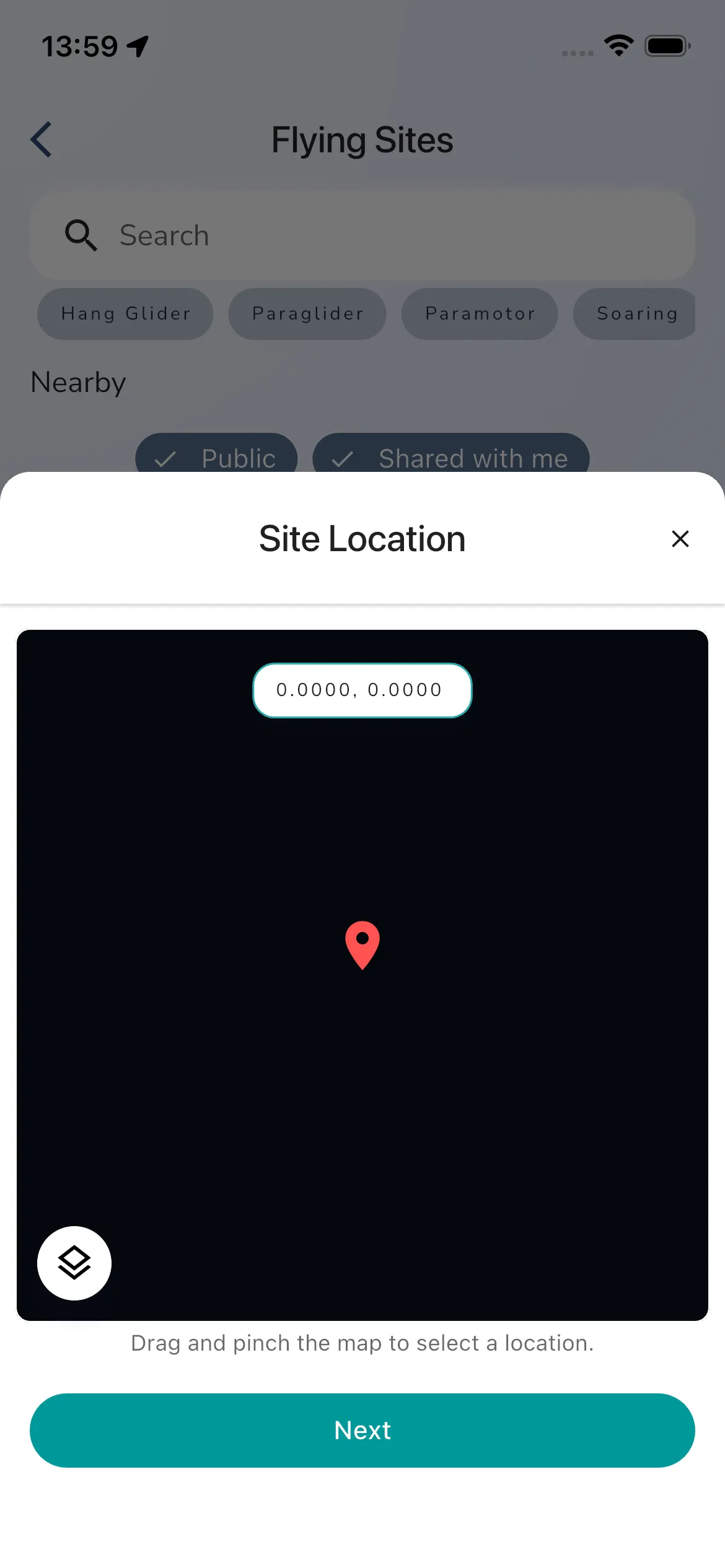
The first step is the Site Location screen. Drag the map to position the pin, then tap Next.
Review nearby-site warnings
After you choose a location, Gaggle checks for existing sites within a small radius.
If a nearby site is found, the app shows a Warning! screen with the existing site preview. From there you can:
- tap Join Site if it is the same site and you want to favourite or open it
- tap Next if you still need to continue creating a separate site
If no nearby site is found, Gaggle skips this warning and opens Site Details directly
Add the site details
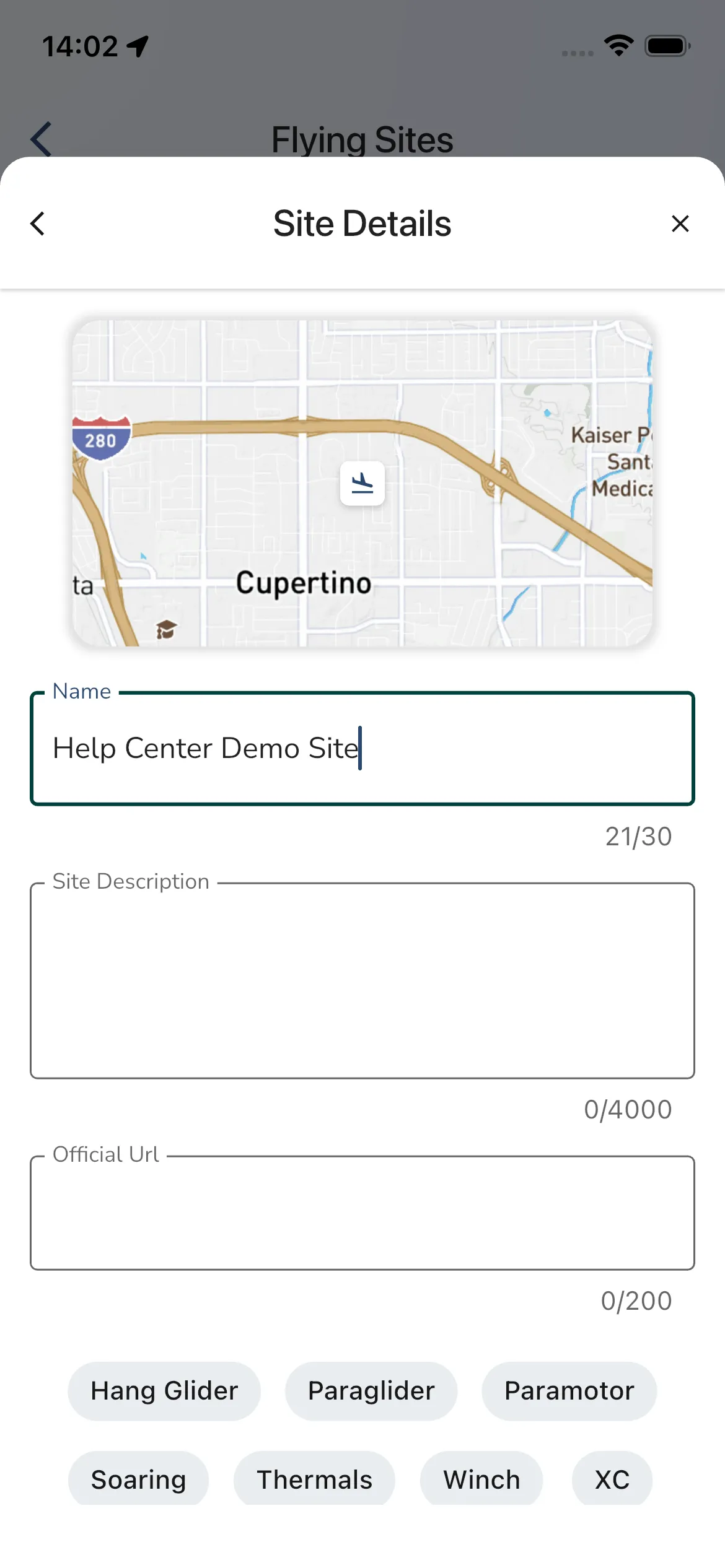
The Site Details step shows a map preview for the selected location and fields for:
- the site name
- a site description
- an official URL
- relevant site tags
Only the name is required to continue. The Next button unlocks once the site name is longer than two characters.
Protection and visibility
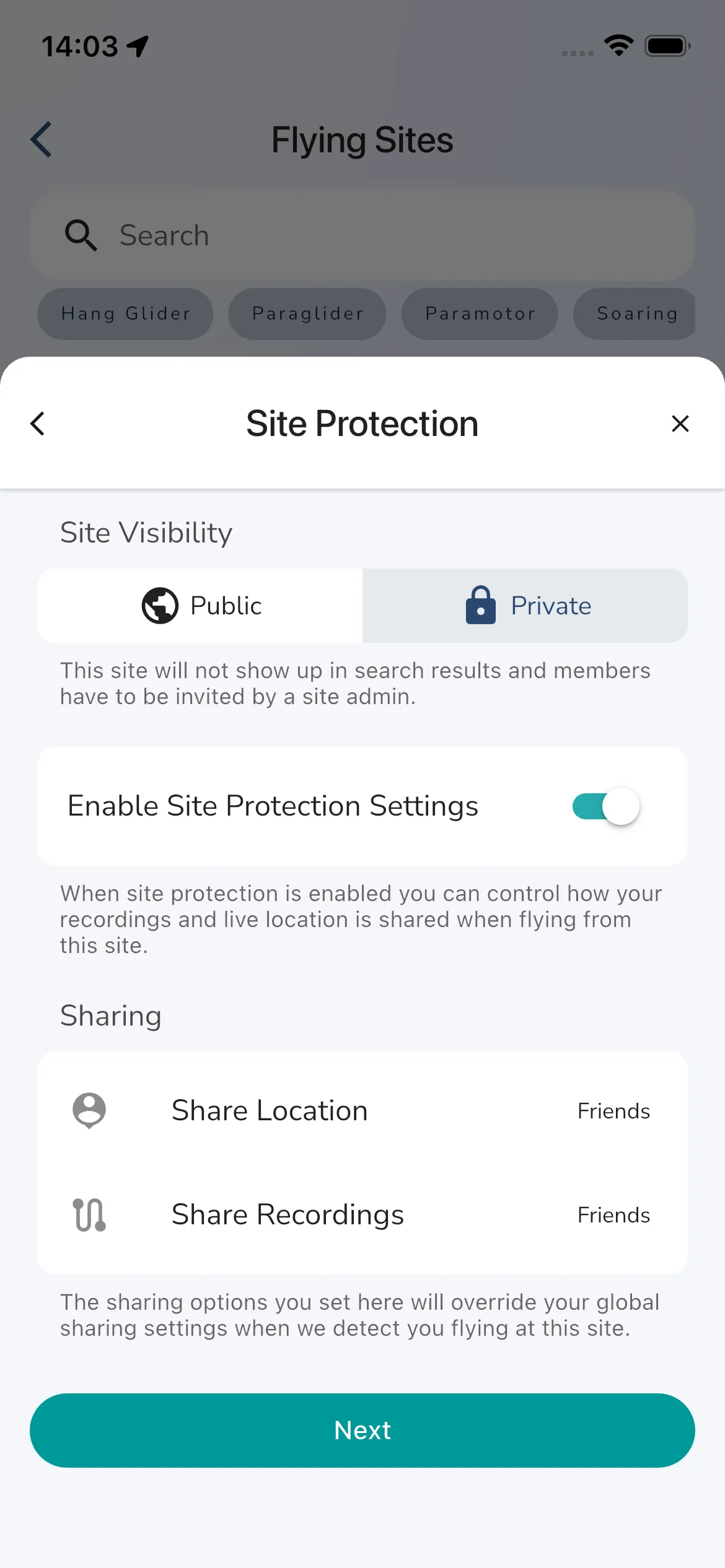
The next step is Site Protection.
Here you can choose whether the site is:
- public
- private
Public sites show in public search results and anyone can view them.
Private sites stay out of search results and members need an invite from a site admin.
In the current create flow, private sites start with Site Protection Settings enabled so flights from that site can override your normal global sharing settings. From there you can set:
- live location sharing
- recording sharing
The default sharing overrides in the current flow are Friends for both location and recordings.
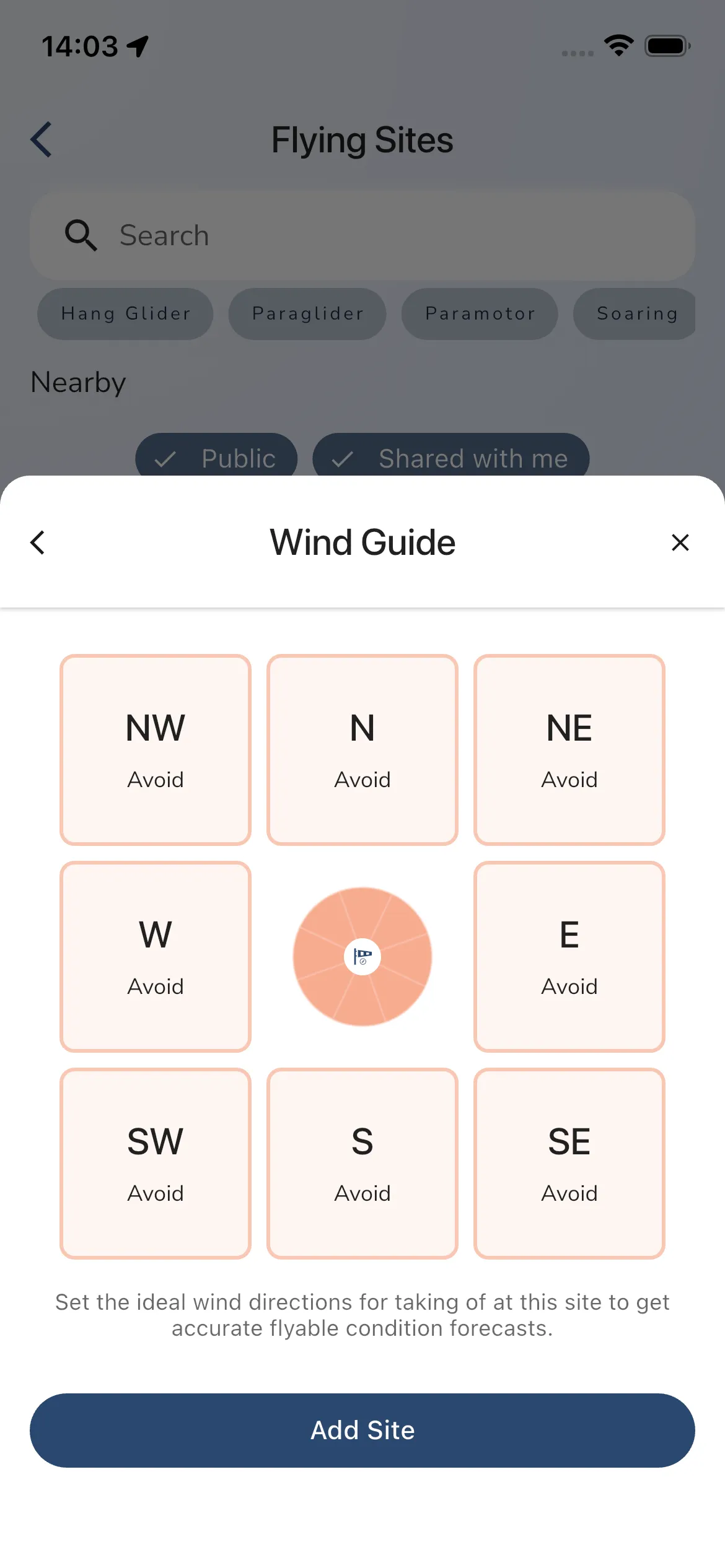
Wind guide
The final setup step is Wind Guide.
Tap each wind tile to cycle through:
AvoidPossibleGood
Set the directions that make sense for takeoff at that site, then tap Add Site.
If you leave every direction on Avoid, Gaggle still creates the site, but the site page shows that the wind guide is not valid yet and tells you to fix it in settings.
Once at least one direction is set to Possible or Good, the site uses that saved wind guide for its weather forecast and flyability views.
Open a site details page
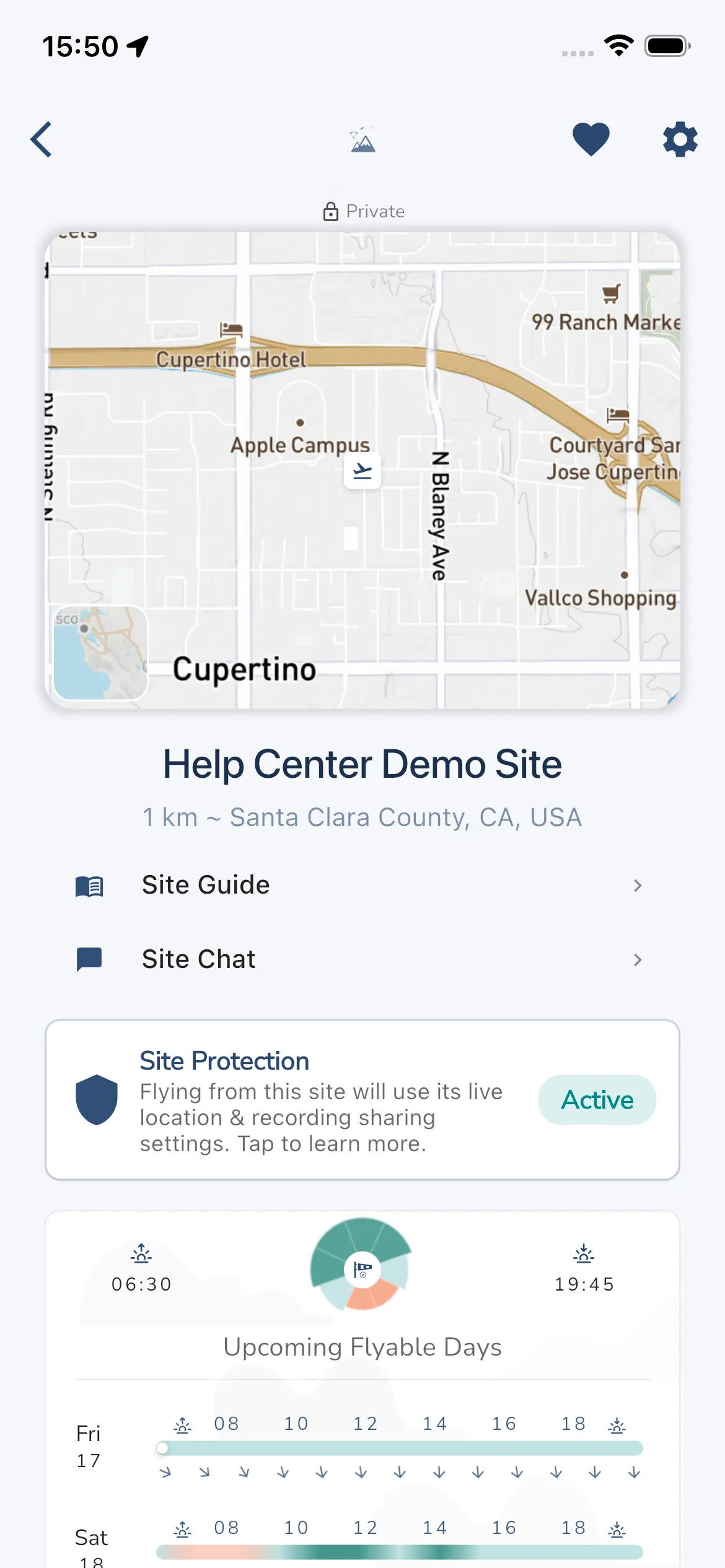
Open any site from Home, Explore, or search to reach the main site page.
This page includes:
- the site map and header
- a quick weather summary with sunrise, sunset, and Upcoming Flyable Days
- the Site Guide
- Site Chat
- protection or sharing details
- settings actions if you can manage the site
Use the site map
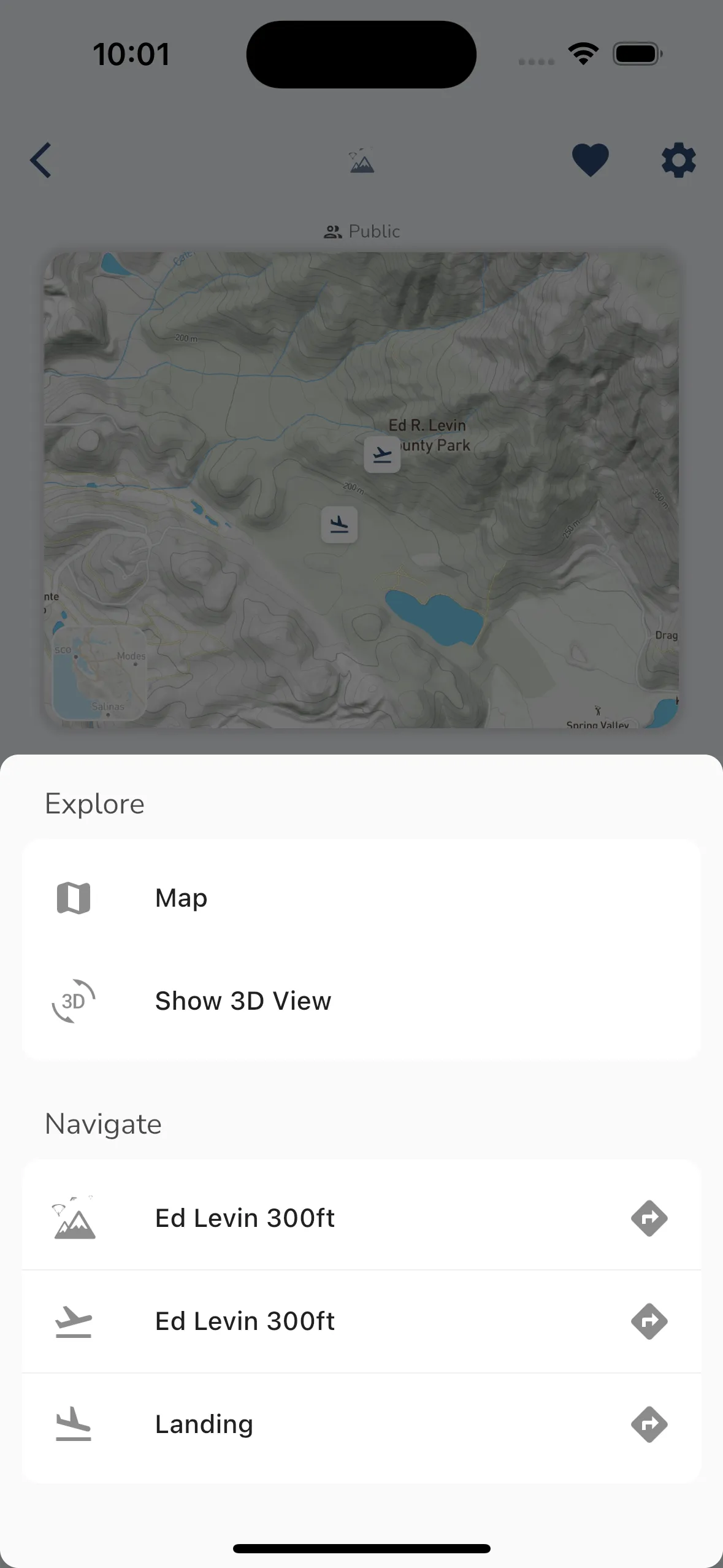
The site map gives you a fast visual overview of the launch area and its surroundings.
Use it when you want to:
- confirm the site’s location
- inspect terrain and nearby landmarks
- open the map action sheet
- jump into the dedicated
MaporShow 3D View
Use the weather forecast
The site page also acts as the weather entry point for that location.
From the weather card you can:
- check sunrise and sunset times
- review Upcoming Flyable Days when that premium weather card is available on your account
- open Weather Forecast for a deeper forecast view
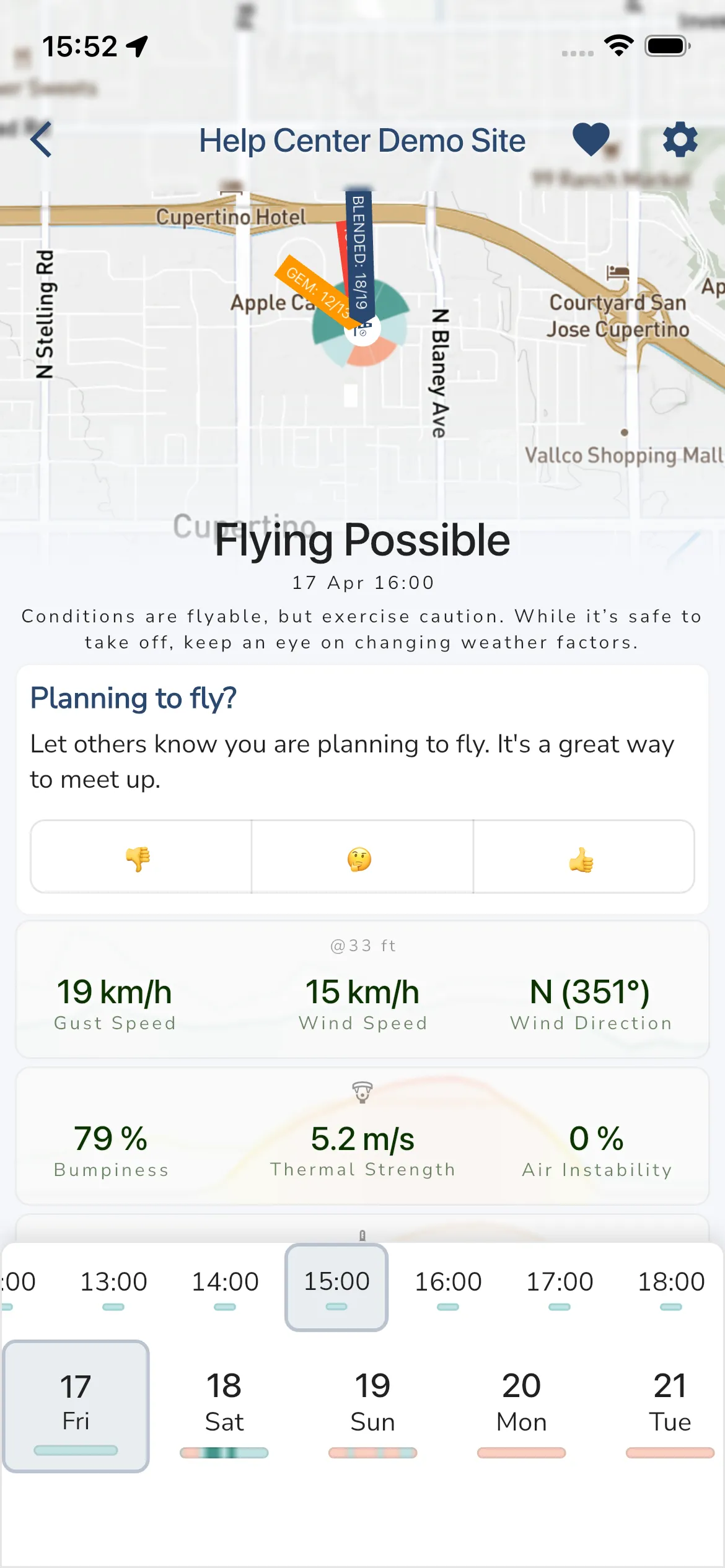
When the wind guide is valid, Weather Forecast opens the full site forecast with:
- the current flyability summary
- planning reactions such as
Planning to fly? - wind, thermal, bumpiness, and precipitation metrics
- hourly forecast columns
- multi-day forecast cards
If the site does not have a usable wind guide yet, Gaggle still opens the forecast page, but it also shows a warning telling admins to fix the wind guide in settings.
Read the site guide
Open Site Guide from the site page when you want the written brief for that location.
Depending on the site, it can include:
- launch notes
- landing notes
- local hazards
- access information
- other flying advice
Use site chat
If site chat is available on your plan, the site page includes a Site Chat row.
Use it to follow local discussion, ask about conditions, and catch unread messages tied to that site.
Open site settings
The site page includes a settings button in the top-right corner.
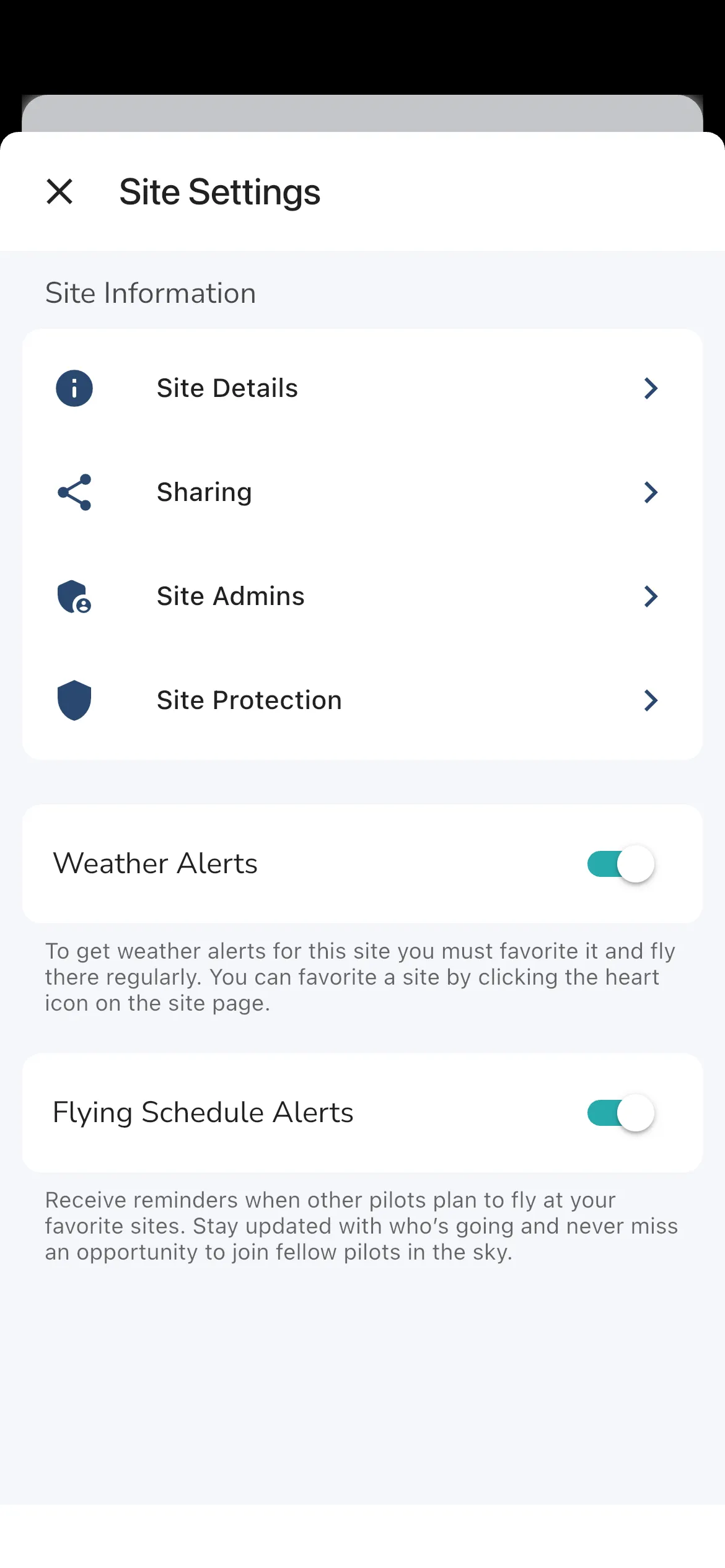
The main Site Settings page can include:
- Site Details
- Sharing
- Site Admins
- Site Protection for private sites
- notification and alert toggles such as Weather Alerts and Flying Schedule Alerts
Site Details settings
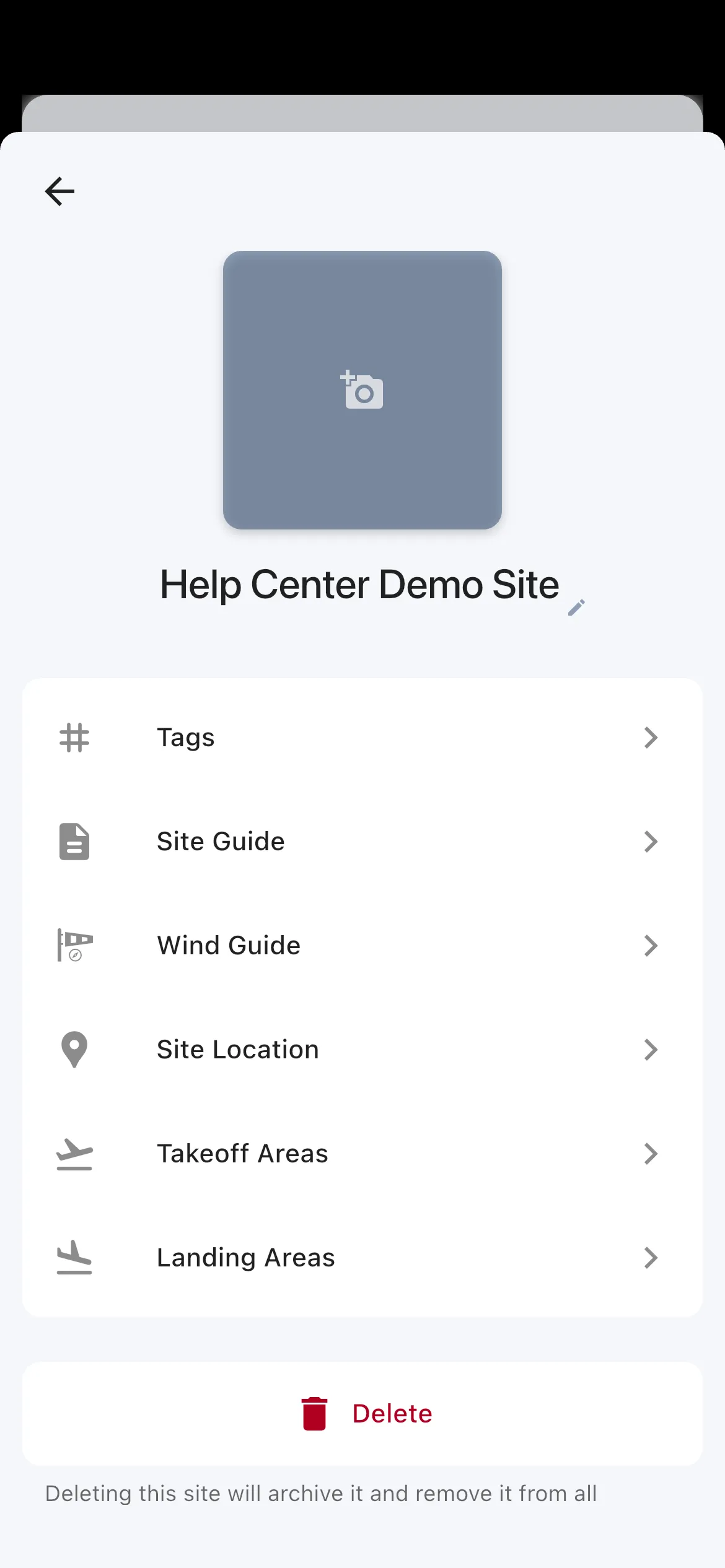
Open Site Settings > Site Details to manage the core site information.
This area includes:
- Tags
- Site Guide
- Wind Guide
- Site Location
- Takeoff Areas
- Landing Areas
- Delete for archiving the site
Use this page when you need to improve the actual site data after creation, not just the initial wizard values.
Sharing settings
Open Site Settings > Sharing to manage who can access the site.
From the current code path, this area lets admins:
- switch the site between Public and Private
- share a private site with My Groups
- share a private site with Pilots Nearby
- open a Share Link
Site Admins
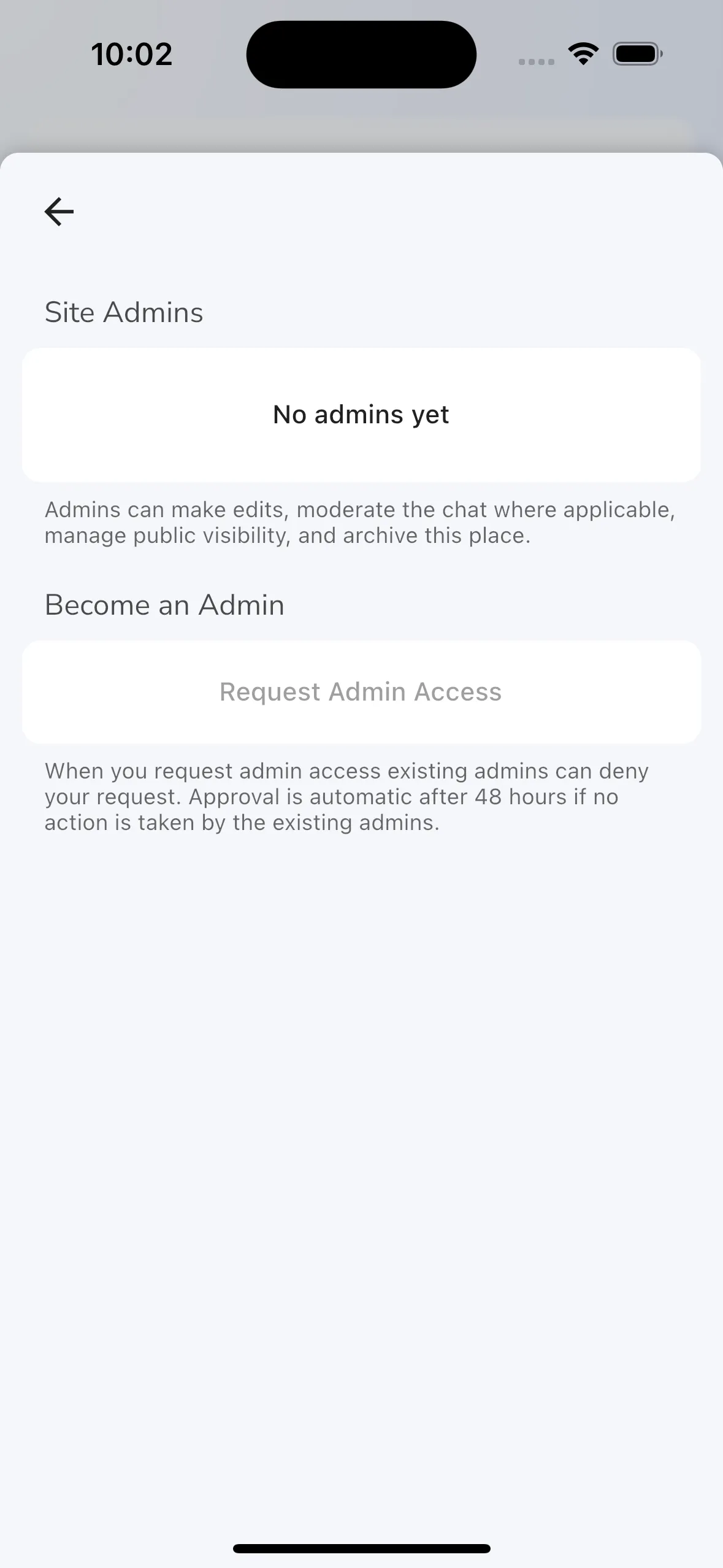
Open Site Settings > Site Admins to see who manages the site.
This page shows the current admin list. Non-admin users can still see this area and request access. If you are an admin, you can also review incoming admin requests there.
Site Protection settings
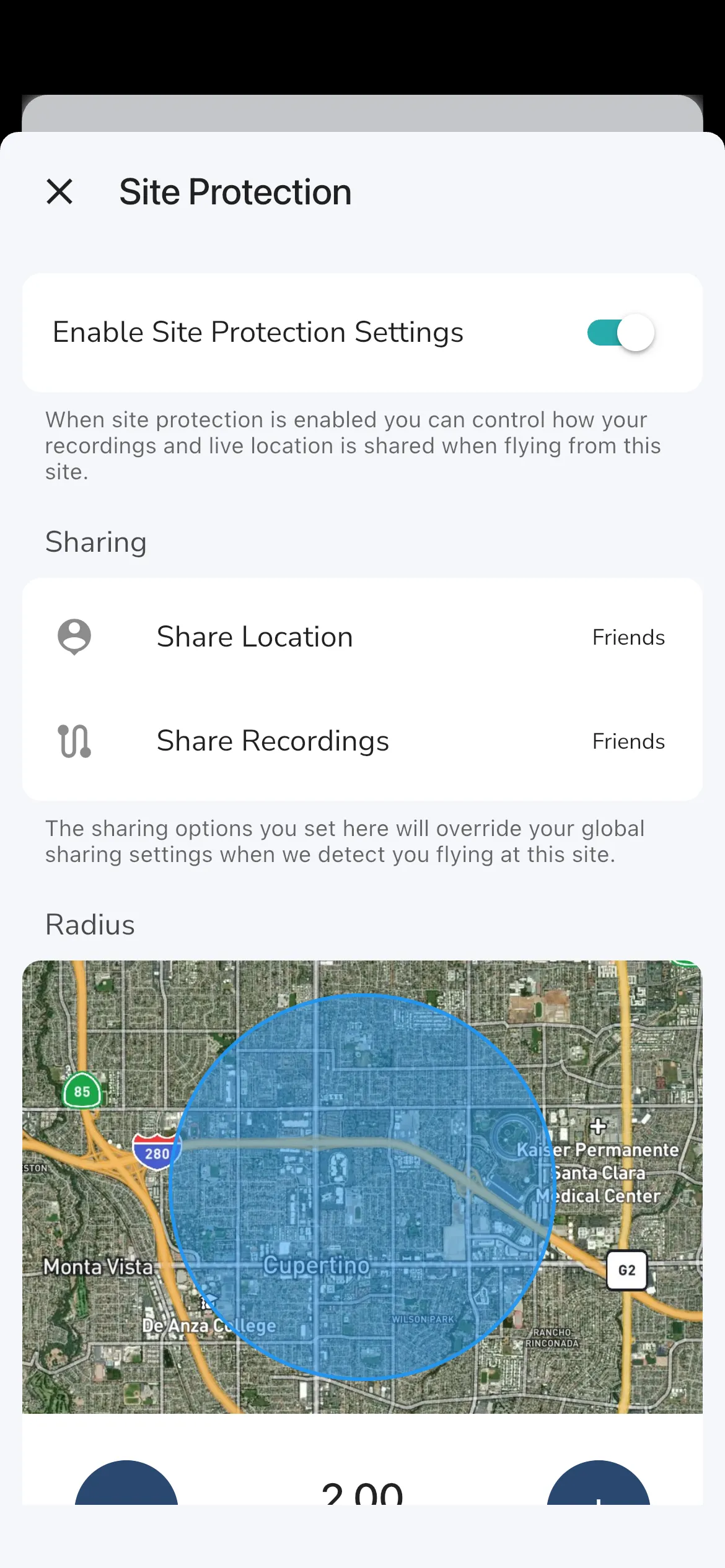
Open Site Settings > Site Protection on a private site when you want the site to override normal sharing behavior during flights from that site.
This page lets admins:
- enable or disable Site Protection Settings
- choose Share Location
- choose Share Recordings
- adjust the protection Radius around the site
Within that radius, Gaggle uses the site-specific sharing rules instead of your normal global sharing settings.
Edit the wind guide after creation
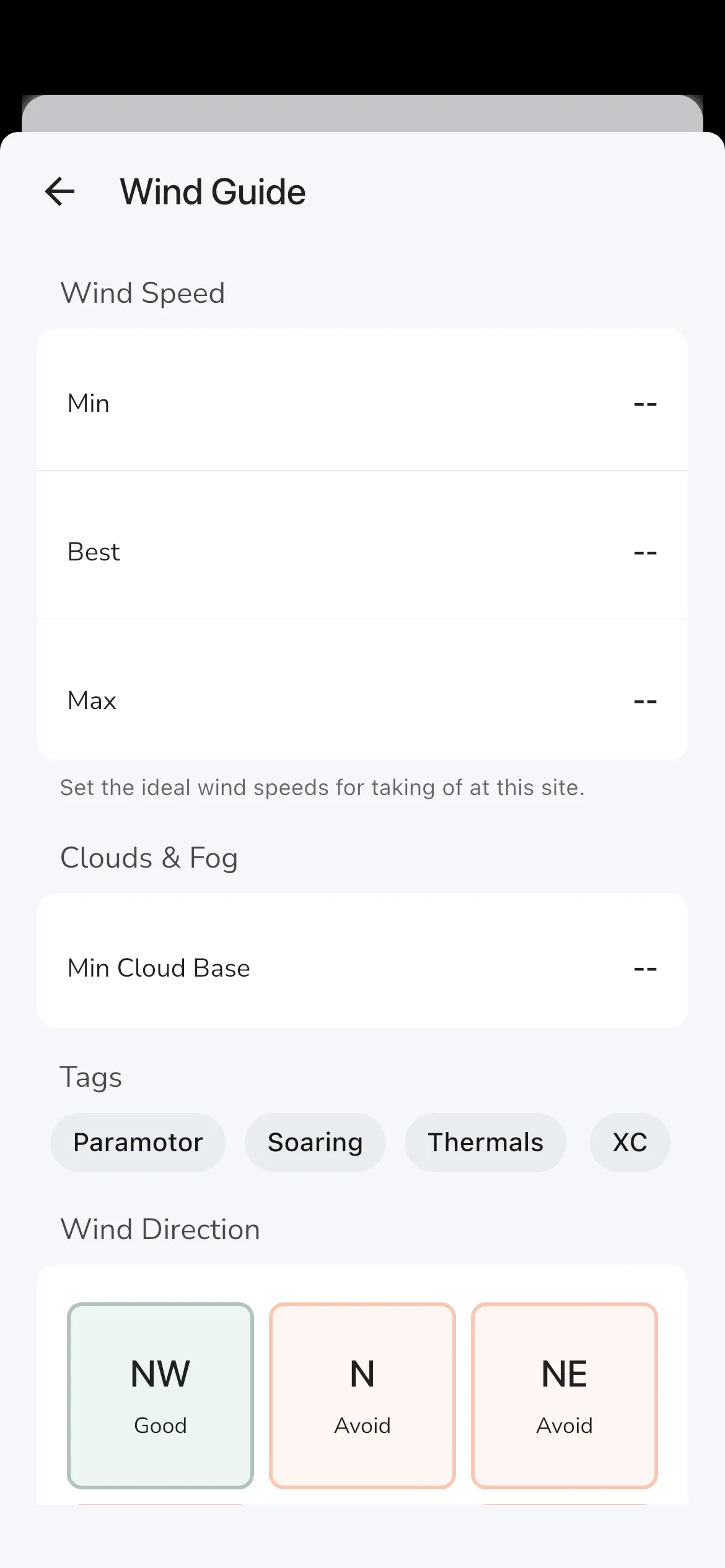
The create flow only captures the quick direction grid. For the full wind guide editor, open:
Site Settings > Site Details > Wind Guide
The detailed editor adds:
- Min, Best, and Max wind speed
- Min Cloud Base
- wind-related tags
- the direction grid for
Avoid,Possible, andGood
Tap a direction tile to cycle through Avoid, Possible, and Good.
At least one direction needs to be Possible or Good for the site to stop showing the invalid wind-guide warning.
Alerts and notifications
The lower part of Site Settings includes your personal alert controls for that site.
Depending on your membership and chat participation, Gaggle can show:
- chat Notifications
- Weather Alerts
- Flying Schedule Alerts
The current UI explains that weather alerts work best for sites you have favourited and fly regularly.
Next steps
If you want a forecast-first view of your key sites, go back to Home and use the Flying Sites section.
If you want to keep discovering places nearby, return to Explore and continue from search or the nearby map.