
Help Article
Flight Logs
Learn how to open your flights, add manual logs, import files, and export recordings with the current app flow.
Flight Logs
Profile > All Flights
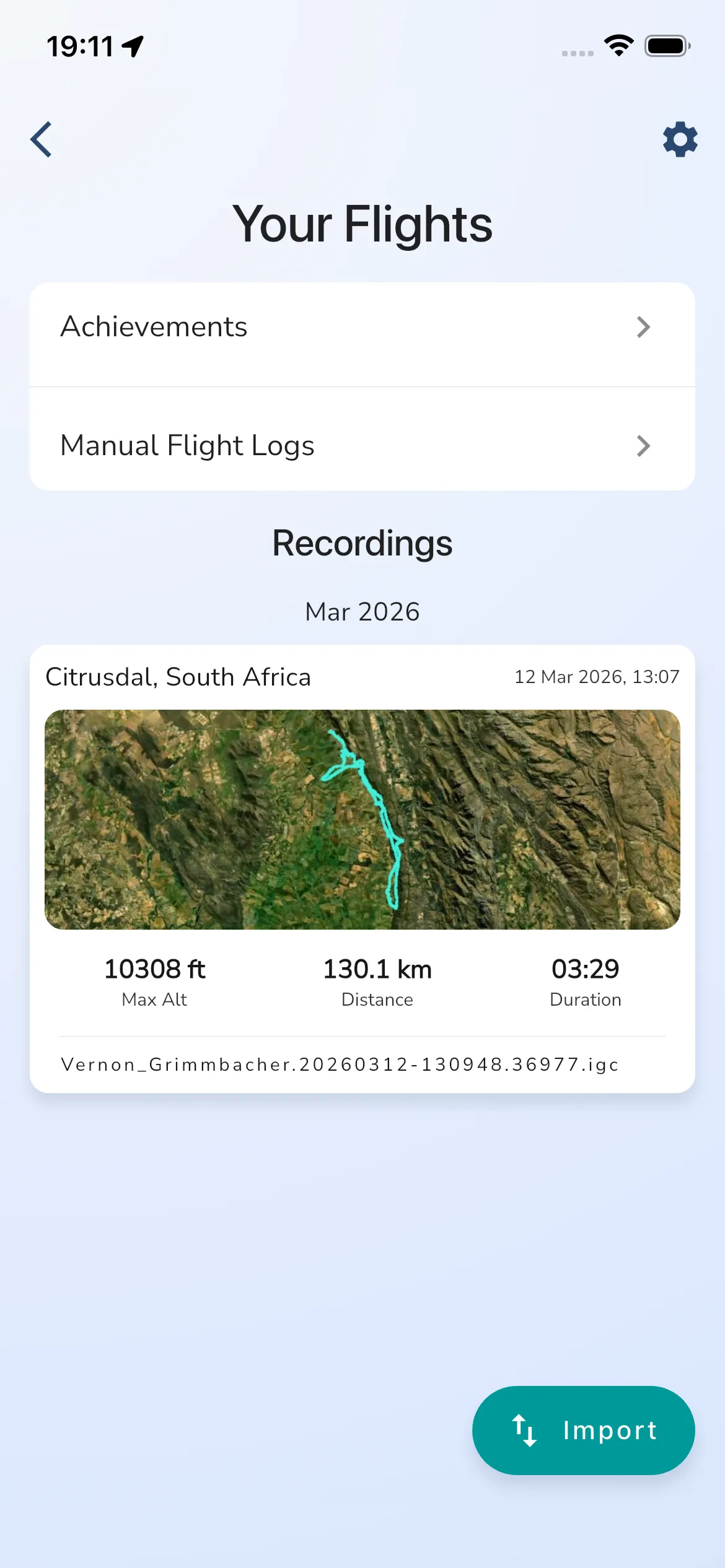
The Your Flights screen is the main hub for saved recordings and imported flights.
The current screen includes:
- quick links for
AchievementsandManual Flight Logs - a
Recordingslist grouped by month - a floating
Importaction - the gear icon for flights settings
Tap any recording card to open the saved flight details.
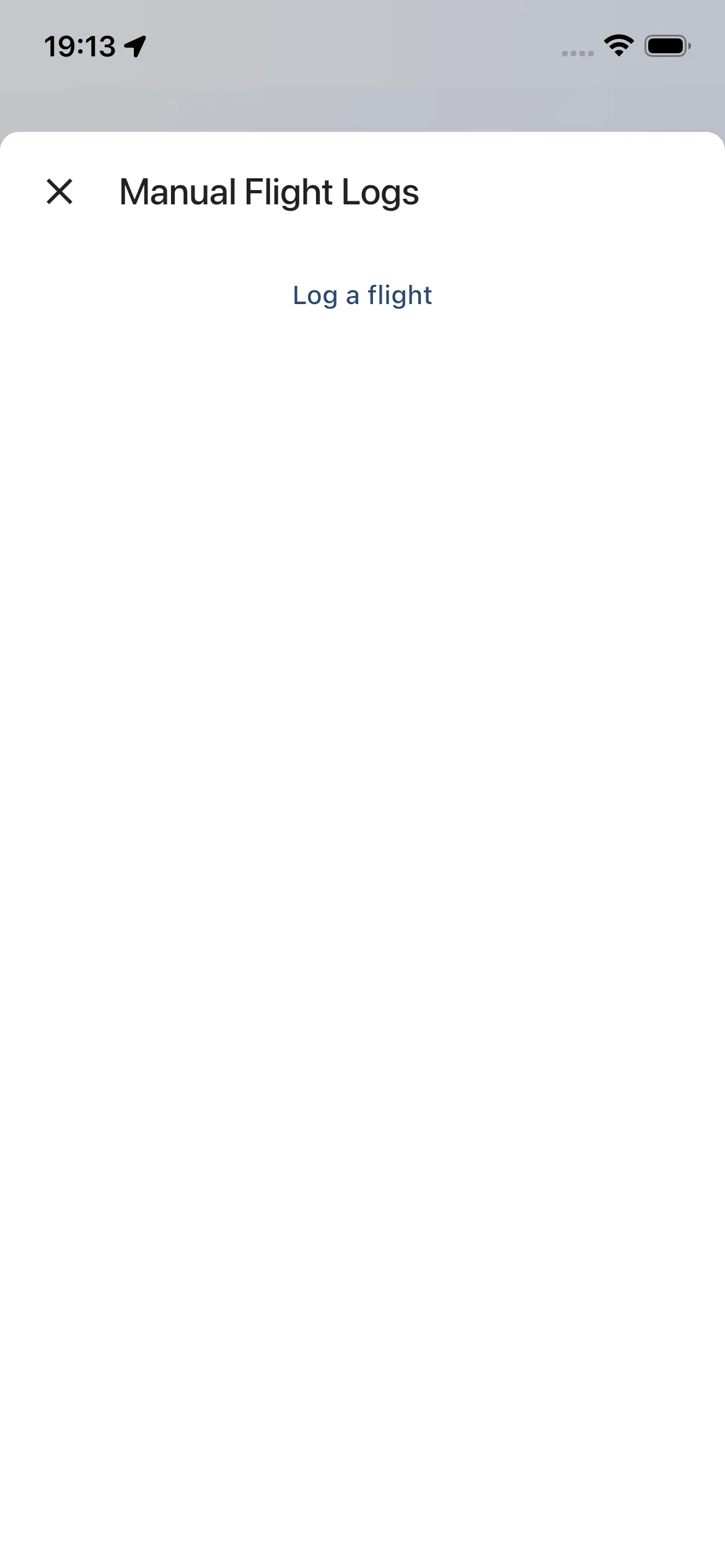
Manual flight logs
Recording with Gaggle is not the only way to build your logbook. Open Manual Flight Logs if you want to add a flight without a recorder file.
The manual log screen currently opens as Manual Flight Logs and shows the action Log a flight.
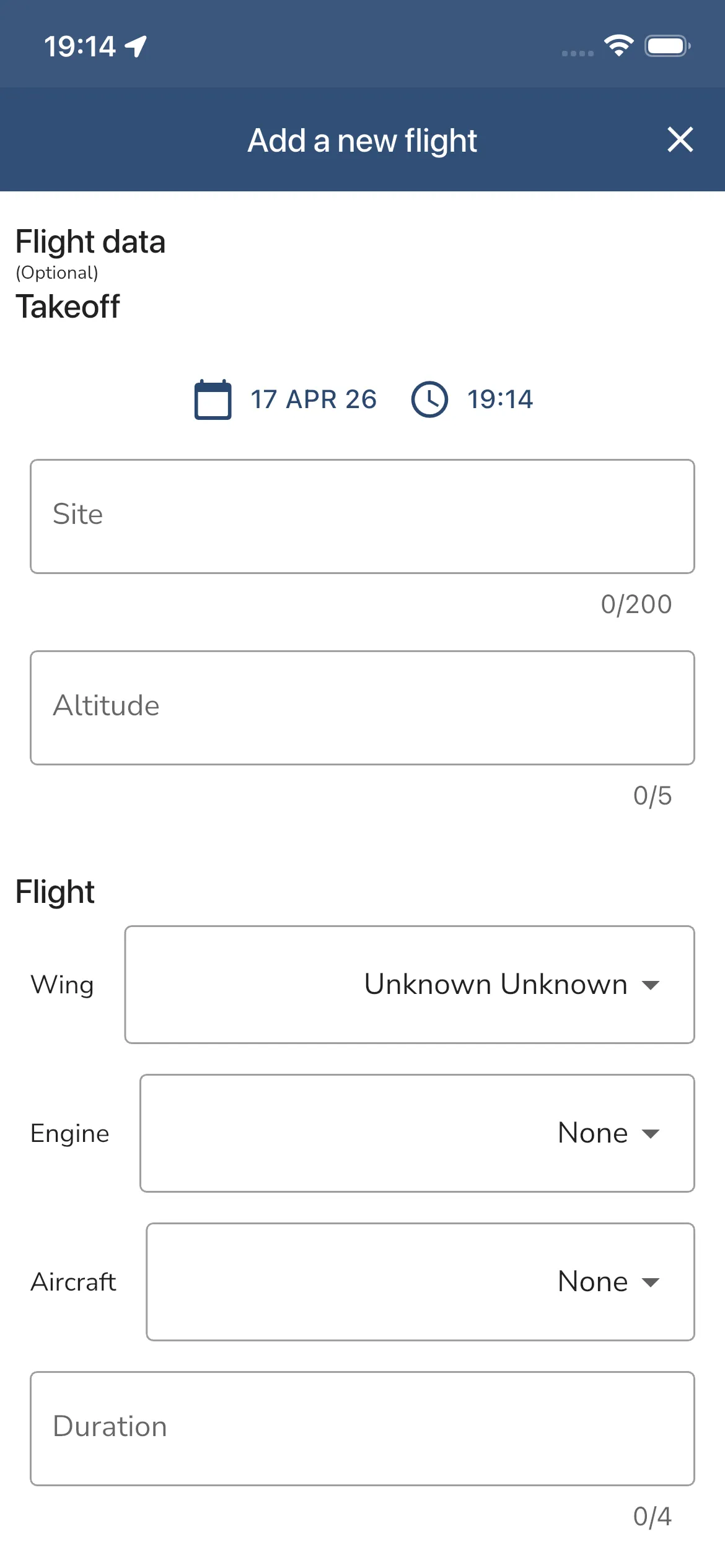
What you can add manually
Tap Log a flight to open Add a new flight.
The form is currently split into these sections:
Flight data (Optional)TakeoffFlightWindDescriptionSave
The current form lets you enter the site, altitude, duration, saved equipment, wind details, and notes for the flight.
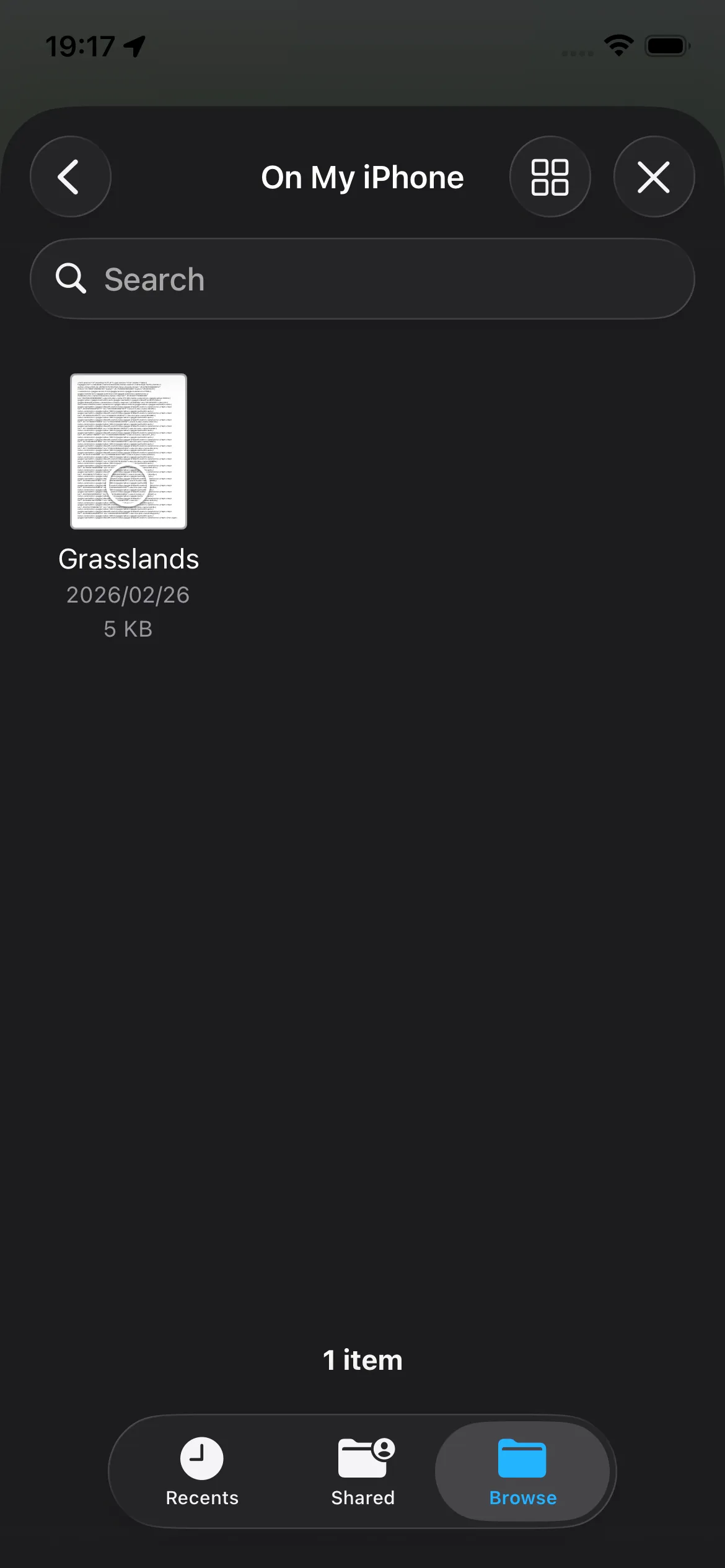
Importing flights from GPX and IGC files
Tap the floating Import button to start the current two-step import flow.
Step 1 is Import from file, where Gaggle shows:
Import GPX/IGCNext
Choose the GPX or IGC file first, then continue to the equipment step.
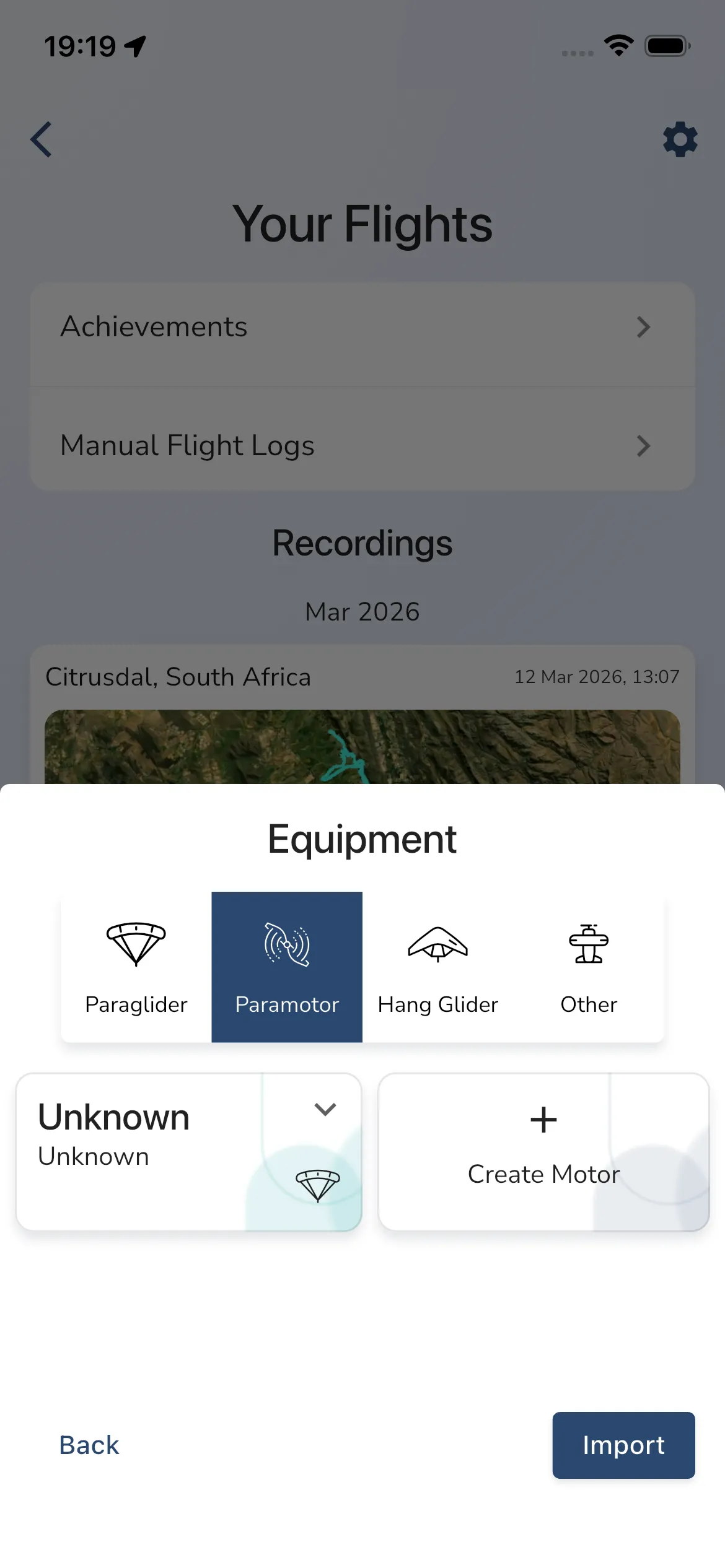
Match the imported flight to equipment
Step 2 is Equipment.
Choose the aircraft type first, then confirm the saved gear that matches the imported file. If the selected type does not have saved equipment yet, Gaggle can show inline equipment creation prompts such as Create Wing or Create Motor before import.
The current action buttons are:
BackImport
After a successful import, the flight opens in the same saved recording view as a normal Gaggle flight.
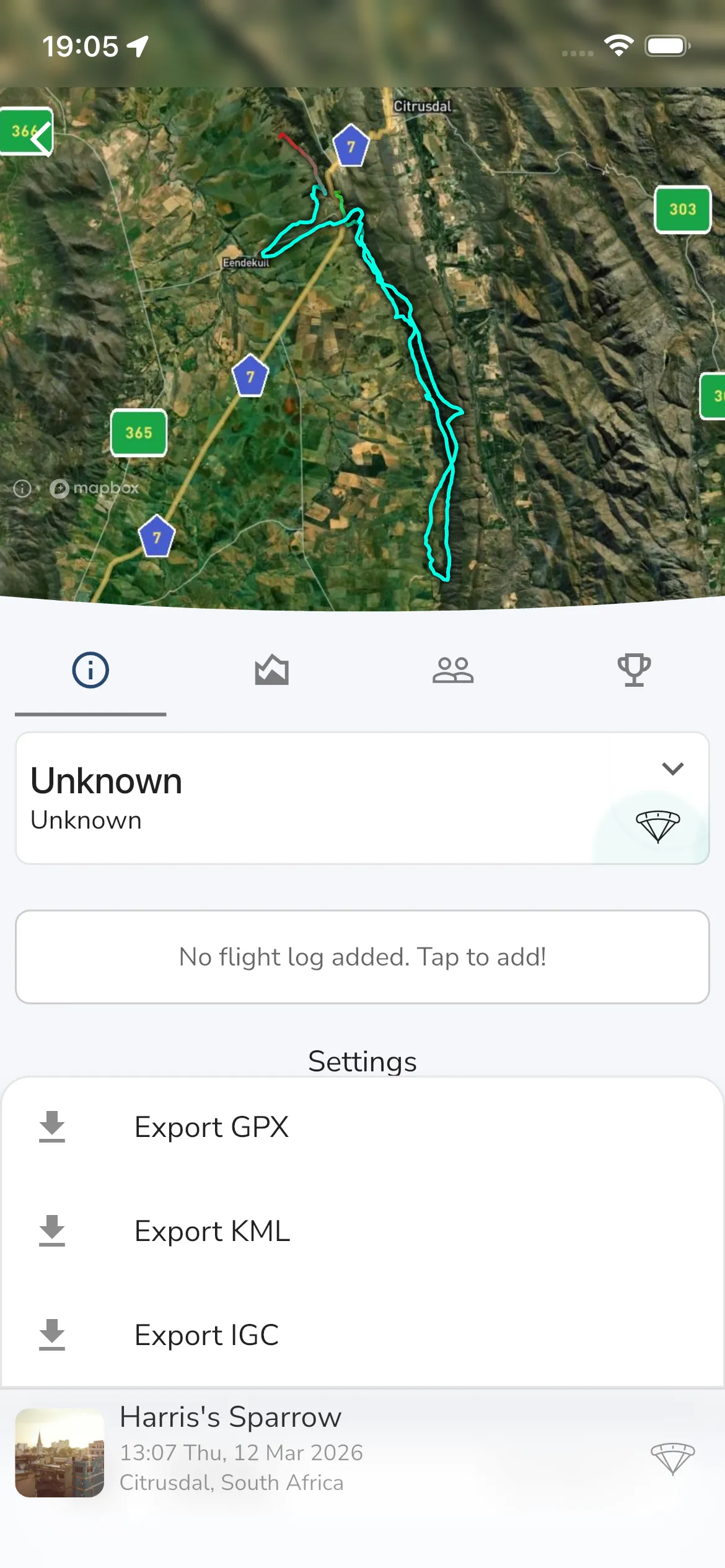
Export flights
From an individual recording, open the info tab and tap Export.
The current export choices are:
Export GPXExport KMLExport IGC
For a full logbook export, use the gear icon on Your Flights, open Flight Log Export, then use Request Export.
Notes about imported files
Imported flights depend on the data inside the file you choose. If a GPX or IGC file is missing some telemetry, Gaggle may still import it, but the saved flight can have less detail than a recording made directly inside the app.