
Help Article
Bluetooth devices
Connect and manage Bluetooth flight devices from Equipment.
Bluetooth Devices
Profile > Equipment > Bluetooth Devices
Use Bluetooth devices to provide additional data to Gaggle while recording, such as GPS, variometer, pressure, and engine-related telemetry where supported.
Start from Equipment
On Profile > Equipment, open the Bluetooth Devices section and tap Connect New Device.
The current Equipment screen also shows the reminder:
Devices will only connect after you start the flight recording
Add a Bluetooth device
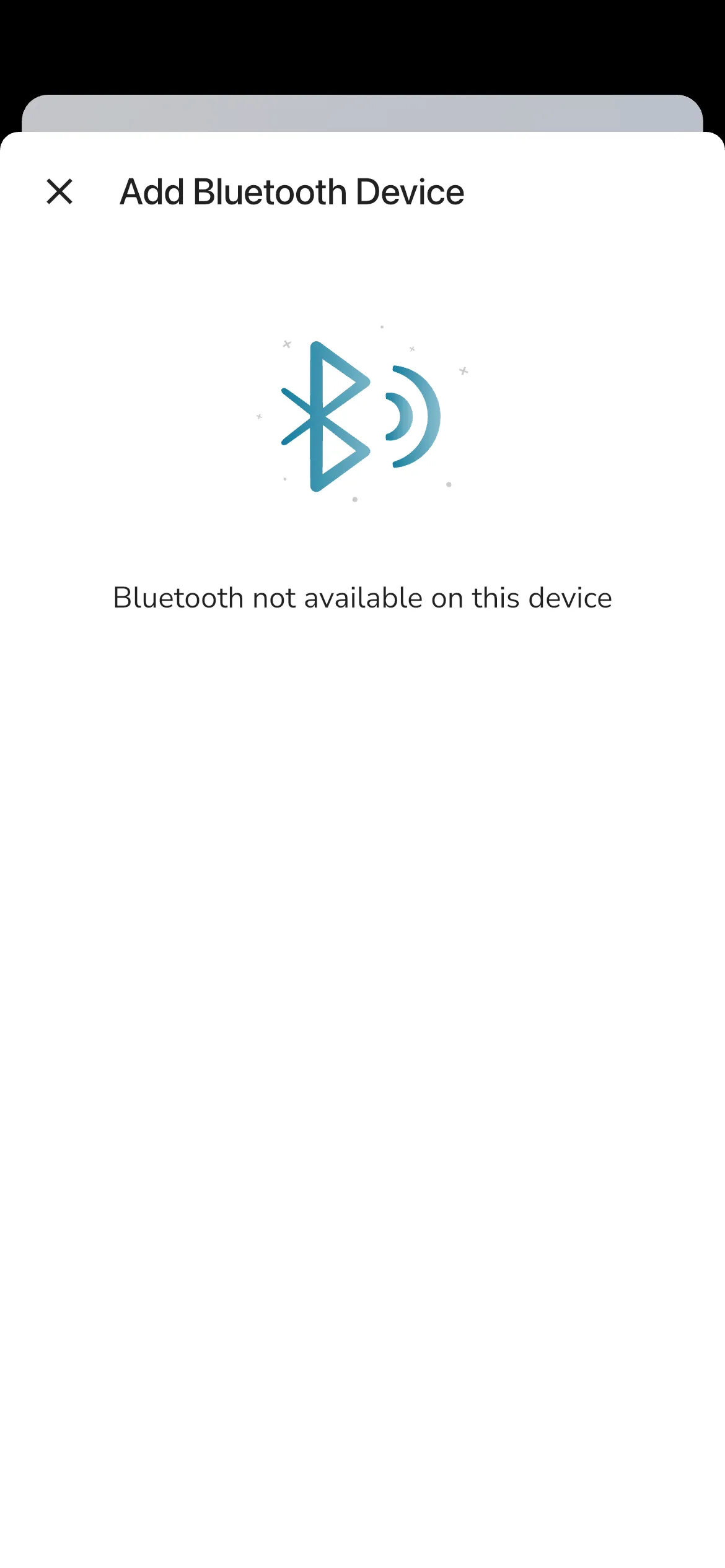
The add flow currently uses:
- Title: Add Bluetooth Device
- Scan state text: Tap the device you want to connect with
- Scan state text: Scanning for devices, make sure your bluetooth device is turned on
- Add/connect step title: Adding Device
- Connection state: Connecting to {device}
- Connection state: Done! {device} connected
In iOS Simulator, Bluetooth hardware is not available, so the live state can show:
Bluetooth not available on this device
Bluetooth device details and toggles
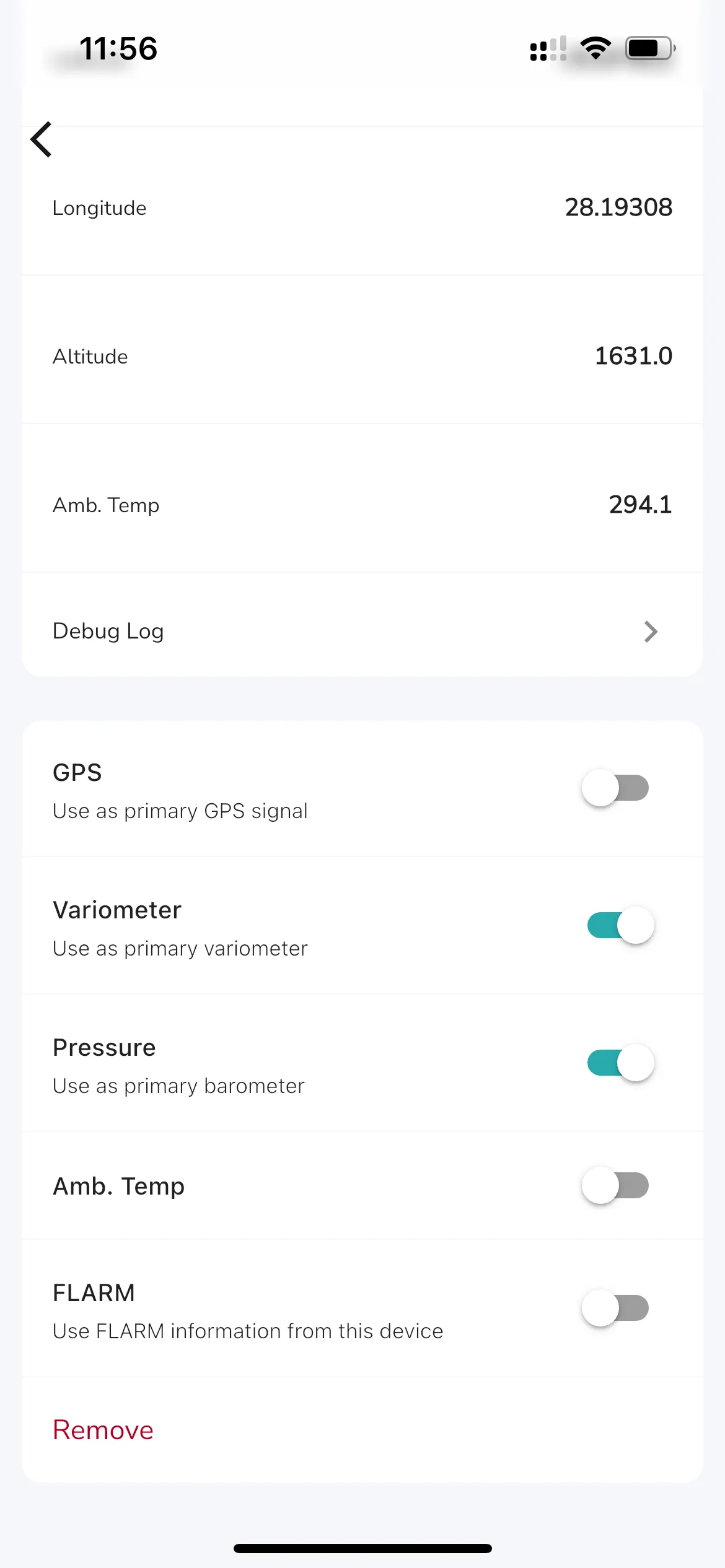
The detail page currently has:
- Device Info (for example Manufacturer, Model Number, Name)
- Incoming Data (connection status and live fields when data is received)
Depending on what the connected device sends, toggle options can include:
- GPS
- Variometer
- Pressure
- Fuel Level
- Amb. Temp
- CHT
- EGT
- RPM
- FLARM
For the raw $ strings and sentence types Gaggle can parse from a Bluetooth serial stream, see Bluetooth NMEA strings.
Removal is destructive and uses:
- Remove {name}?
- REMOVE
Notes about screenshots in this article
bluetooth-add.png is refreshed from the current session.
bluetooth-configure.png is kept as a reference image path, but a fresh connected-device capture was not possible in Simulator in this session.