
Help Article
Audio Cues
Configure Gaggle's spoken announcements, interval callouts, and related in-flight audio tools.
Audio Cues
Record > Recorder Settings > Audio Cues
Gaggle includes a built-in voice assistant that can read out useful flight information while you are recording. The current Audio Cues page lets you test the voice, enable or disable announcements, choose a voice, control call behaviour, and fine-tune what gets announced automatically.
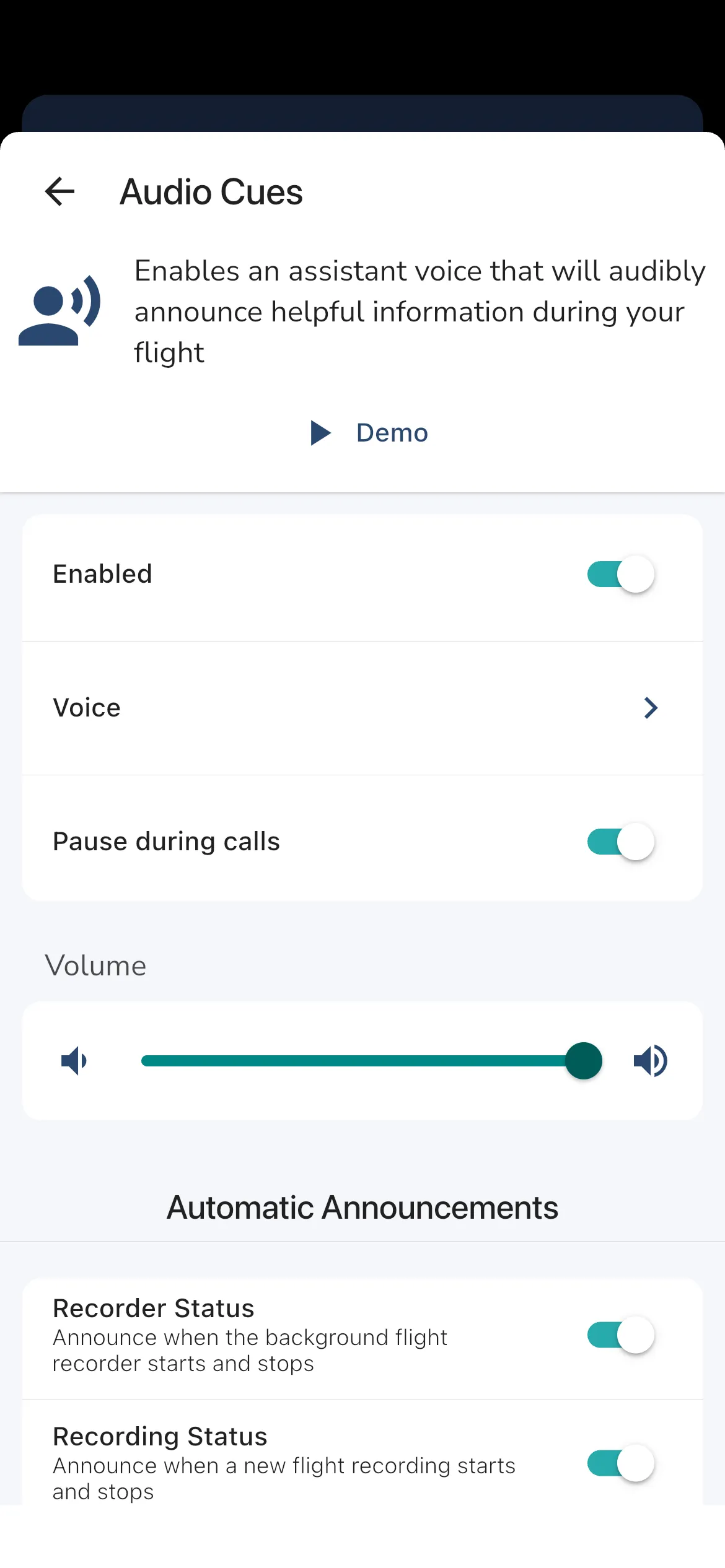
Main settings
Demoplays a sample announcement so you can confirm the voice and volume before takeoff.Enabledturns spoken announcements on or off for the recorder.Voicelets you choose the assistant voice used on this device.Pause during callsstops callouts while you are on a phone call.Volumeadjusts Gaggle’s own cue volume, but your phone’s media volume still matters as well.
Automatic announcements
The current Automatic Announcements section includes controls such as:
Recorder StatusRecording StatusFlight TimeFuel LevelSunsetAircraft WarningsPower LinesAirspaces
Enable the items you want to hear during flight, and disable the ones that would be distracting for your setup.
Interval announcements
The Interval Announcements section lets you choose both the announcement interval and which values should be read on that timer. The current options include:
AltitudeGround SpeedWindWaypoint
This is useful if you want a recurring spoken status update without having to look down at the screen.
Task guidance cues
If you are flying a route, the page also includes a Task Guidance Cues area for route-related announcements. These cues work alongside the main automatic and interval callouts rather than replacing them.
Knock Detection
Knock-triggered controls are no longer configured inside the Audio Cues page. They now live under:
Recorder Settings > Gestures > Knock Detection
From there you can:
- enable or disable knock detection
- adjust the sensitivity
- assign actions to
2 Knocks,3 Knocks, and4 Knocks
Knock detection is useful when you want an in-flight shortcut without taking your eyes off the air for long.
Tips
- Use
Demowhile changing volume so you can hear the exact output level you will get in flight. - If announcements seem quiet, also raise the phone’s media volume while the demo or a cue is playing.
- If you regularly take calls while tracking, keep
Pause during callsenabled to avoid overlapping audio.