
Help Article
Configure Airspace Display
Learn how to configure how airspaces are displayed in the app
Configuring Airspaces
Explore > Airspaces > Installed Airspaces > Select an airspace
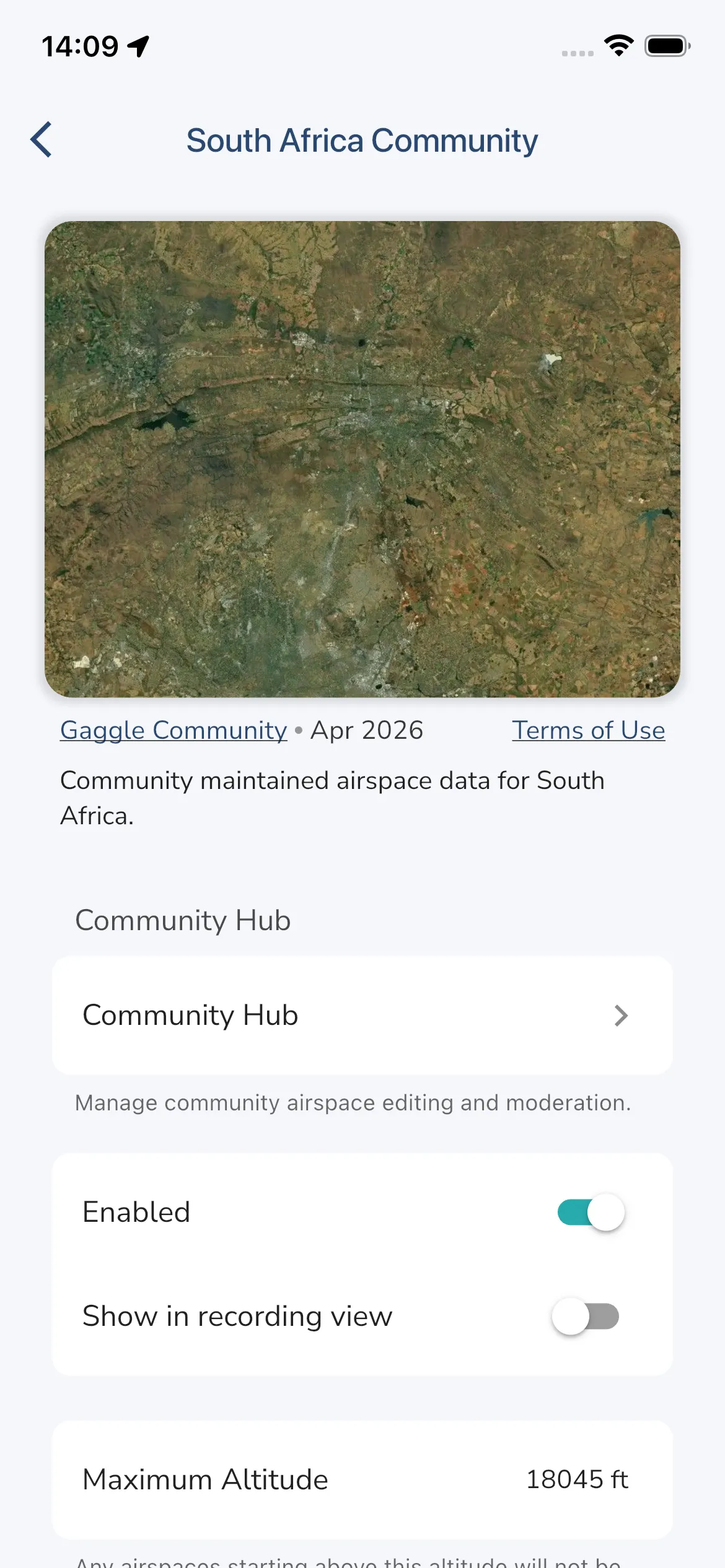
After you install an airspace collection, it appears in the matching installed section on the Airspaces home screen. Tap the item or its settings icon to open the settings page.
On this page you can configure:
- Enabled to turn the whole collection on or off.
- Show in recording view to include this collection while recording.
- Maximum Altitude to hide airspaces that start above your selected limit.
- Configuration rows to set class visibility and class color.
- Airspaces to open a searchable list and hide or show specific named airspaces.
- Remove to remove the installed collection.
You can also see attribution, last update month, and Terms of Use for the selected collection at the top of the page.
For community-maintained packs, the settings page can also include Community Hub. This opens the community-airspace workflow for that installed pack, including pending actions, editor access, moderators, and top contributors.